

# Forked from https://gist.github.com/gguerini
# Syntax edits by Sick Codes (GPLv3+)

# Disable menu bar transparency
defaults write NSGlobalDomain AppleEnableMenuBarTransparency -bool false

# Show remaining battery time; hide percentage
defaults write com.apple.menuextra.battery ShowPercent -string "NO"
defaults write com.apple.menuextra.battery ShowTime -string "YES"
This file contains hidden or bidirectional Unicode text that may be interpreted or compiled differently than what appears below. To review, open the file in an editor that reveals hidden Unicode characters.
Learn more about bidirectional Unicode characters
| #!/bin/zsh | |
| # exit when any command fails | |
| set -e | |
| # keep track of the last executed command | |
| trap 'last_command=$current_command; current_command=$BASH_COMMAND' DEBUG | |
| # echo an error message before exiting | |
| trap 'echo "\"${last_command}\" command filed with exit code $?."' EXIT |
thimslugga
/ pyproject.toml
Created
June 3, 2025 12:30
— forked from cfbevan/pyproject.toml
Full Ruff settings for pyproject
This file contains hidden or bidirectional Unicode text that may be interpreted or compiled differently than what appears below. To review, open the file in an editor that reveals hidden Unicode characters.
Learn more about bidirectional Unicode characters
| [project] | |
| name = "tool_testing" | |
| version = "0.1.0" | |
| description = "Ruff Tested Project" | |
| authors = [{ name = "", email = "" }] | |
| dependencies = [] | |
| requires-python = "==3.11.*" | |
| readme = "README.md" | |
| license = { text = "MIT" } |
This file contains hidden or bidirectional Unicode text that may be interpreted or compiled differently than what appears below. To review, open the file in an editor that reveals hidden Unicode characters.
Learn more about bidirectional Unicode characters
| [Distribution] | |
| Distribution=arch | |
| [Content] | |
| Autologin=true | |
| Bootloader=none | |
| KernelCommandLine=rw | |
| Keymap=us | |
| Locale=en_US.UTF-8 | |
| MakeInitrd=no |
thimslugga
/ build_app.sh
Created
May 8, 2025 16:06
— forked from bistole/build_app.sh
archive, notarize and stapler
This file contains hidden or bidirectional Unicode text that may be interpreted or compiled differently than what appears below. To review, open the file in an editor that reveals hidden Unicode characters.
Learn more about bidirectional Unicode characters
| #!/bin/sh | |
| CODE_BASE=/path/to/Storyboard | |
| SCRIPT_PATH=$(dirname "$0") | |
| DEPLOY_ROOT_PATH="${SCRIPT_PATH}/.." | |
| LOG_PATH="${DEPLOY_ROOT_PATH}/logs" | |
| BUILD_PATH="${DEPLOY_ROOT_PATH}/build/macos" | |
| VERSION= | |
| STATUS= | |
| REQUEST_UUID= |
thimslugga
/ README.md
Created
May 8, 2025 16:05
— forked from riaf/README.md
Script to manually apply your shell PATH to macOS GUI apps. Fixes issues finding Homebrew/custom tools via launchd & launchctl setenv.
Are you struggling with macOS GUI applications (like IDEs, text editors, or other tools launched from Finder or Spotlight) not finding command-line tools installed via Homebrew (/opt/homebrew/bin), MacPorts, or in custom directories like ~/bin or /usr/local/bin? This happens because GUI applications on macOS do not automatically inherit the PATH environment variable set by your login shell configuration files (like .zshenv, .zprofile, .bash_profile, or .bashrc). Your carefully configured shell PATH works in the Terminal, but GUI apps remain unaware of it.
This Bash script provides a simple, manual way to apply the PATH from your current Terminal session to the macOS GUI environment. Instead of complex automatic synchronization, you run this script whenever you want to update the PATH that GUI applications will use.
thimslugga
/ macos_interesting_tools.md
Created
May 8, 2025 15:08
— forked from hym3242/macos_interesting_tools.md
macOS interesting tools
thimslugga
/ 01-mac-profiling.md
Created
May 8, 2025 15:08
— forked from loderunner/01-mac-profiling.md
Profiling an application in Mac OS X
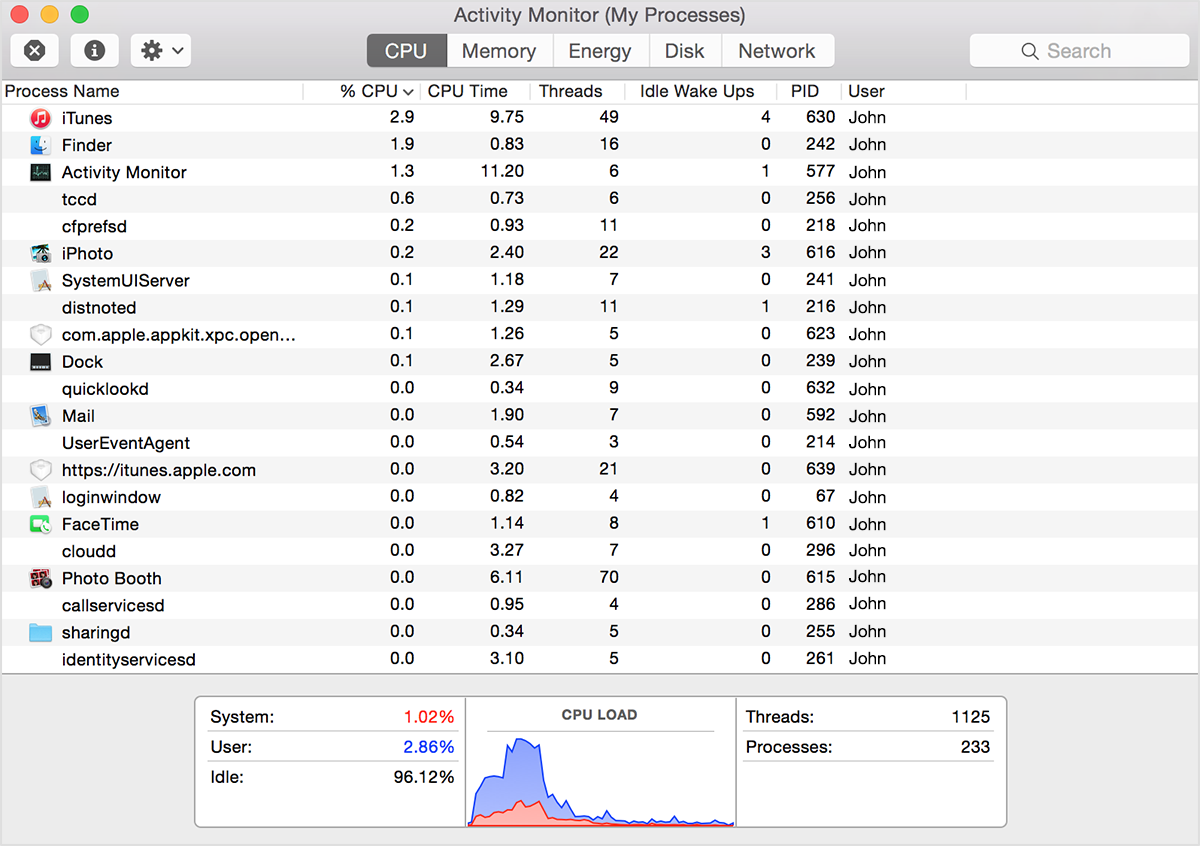
If your system is running slowly, perhaps a process is using too much CPU time and won't let other processes run smoothly. To find out which processes are taking up a lot of CPU time, you can use Apple's Activity Monitor.
The CPU pane shows how processes are affecting CPU (processor) activity:
thimslugga
/ Awesome mac commandline.md
Created
May 8, 2025 15:08
— forked from MaartenS/Awesome mac commandline.md
from https://github.com/herrbischoff/awesome-osx-command-line/blob/master/README.md

A curated list of shell commands and tools specific to OS X.
“You don’t have to know everything. You simply need to know where to find it when necessary.” (John Brunner)


For more terminal shell goodness, please also see this list's sister list Awesome Command Line Apps.
thimslugga
/ cmd.origin.sh
Created
May 8, 2025 15:08
— forked from 166MMX/cmd.origin.sh
macOS Sierra /usr/bin/ Origin
This file contains hidden or bidirectional Unicode text that may be interpreted or compiled differently than what appears below. To review, open the file in an editor that reveals hidden Unicode characters.
Learn more about bidirectional Unicode characters
| #!/usr/bin/env bash | |
| main() { | |
| header | |
| find "$1" \( -type f -o -type l \) -print0 | while IFS= read -r -d ''; do | |
| second "$REPLY" | |
| done | |
| } | |
| second() { |