Skip to content

Instantly share code, notes, and snippets.

Show Gist options
  • Select an option

  • Save HimDek/e09340eae2861e1ad8b7f6bdba5ee9ff to your computer and use it in GitHub Desktop.

Select an option

Save HimDek/e09340eae2861e1ad8b7f6bdba5ee9ff to your computer and use it in GitHub Desktop.
This Guide will show you how to install and run apk files or Android apps in any Edition of Windows 11 using Windows Subsystem for Android. WSA or Windows Subsystem for Android is a Tool that allows Windows to run Android Apps directly without using any emulator.

Install Android apps or apk files in Windows using Windows Subsystem for Android

WSA or Windows Subsystem for Android is a Tool that allows Windows to run Android Apps directly without using any emulator. The problem is Windows Subsystem for Android is currently only available through preview via the Beta Channel of the Windows Insider Program. But if you follow my guide, you don't have to be in Windows Insider Program to try it out. The only thing you need is Windows 11 installed and some patience.

Prerequisites:

  • Windows Subsystem for Android or WSA must be Installed.

Click here to view the guide that shows how to install Windows Subsystem for Android in any Edition of Windows 11 (including Windows 11 Home) non Inider or stable release.

How to Install Android Apps or apk files in Windows Subsystem for Android:

  • First install Windows Subsystem for Android. Click here to know how to do that.
  • Search and run Windows Subsystem for Android Setting from Windows start menu.
  • The window shown in the screenshot below will appear. There, click on the icon in the extreme left side of the Files box. This will start Windows Subsystem for Android and open the File Manager App in Android. This can take some time so be patient.
  • Keep File Manager running otherwise Windows Subsystem for Android will terminate itself.
  • Enable Optional Diagnostic Data and Developer mode in Windows Subsystem for Android Setting Window and click the Refresh button in the IP address Section.
  • Click here to download the latest version of adb and extract the downloaded zip file.
  • Inside the extracted folder, there should be a file named adb.exe along with a plenty of other files.
  • Put the apk files of the Android apps that you want to install in this folder, and rename them to names that are easier to remember.

    Note: You can download apk files of Android apps from websites like APKPure, APKMirror or F-Droid. These are trusted websites.

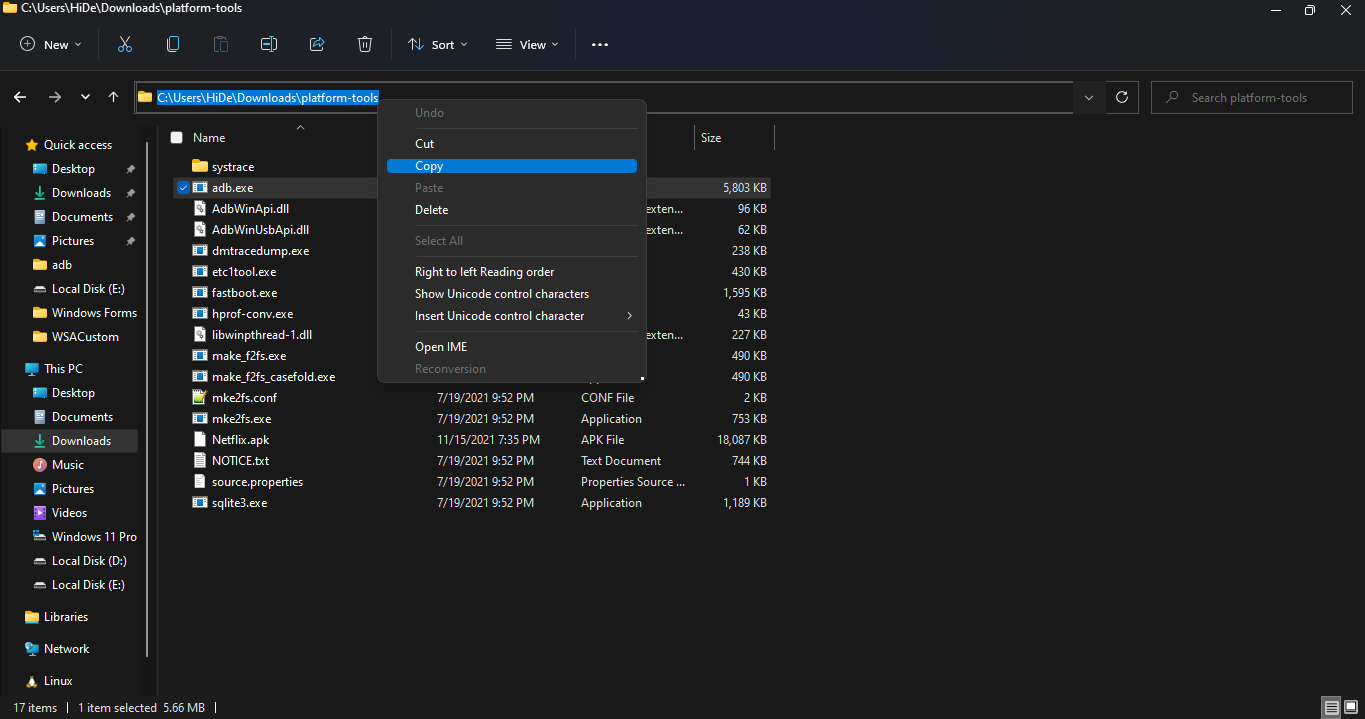
  • Copy the path of this folder from the pathbox in Windows File Explorer as shown in the screenshot below: 11
  • Search for Command Prompt in Windows Start Menu and Open it.
  • Type cd "" in the command prompt. Inside those "", paste the copied path by pressing Ctrl + V. The windows should look something like the below screenshot. Then press Enter. 12
  • Now, type adb connect 127.0.0.1:58526 in the Command Prompt Window. Press Enter and wait for the connection.
  • Once connected, type adb install "name.apk" in the Command Prompt. Replace name with the name of the apk file that you want to install and press Enter. After successful install, the installed App will appear in Windows Start Menu. Repeat this step for all the apk files that you want to install and they will appear in Windows Start Menu as well.

Thats it! Thanks for using this Guide. I hope it helped.

@sajidraza88875-ops
Copy link
Copy Markdown

TeraBox Mod Pro is a resource focused on cloud storage solutions, file management, and backup-related information. It helps users explore ways to store, organize, and access files across devices more efficiently. The site covers topics related to storage space, backups, and digital file accessibility.

@scomastera-ux
Copy link
Copy Markdown

666W Game provides a modern and accessible gaming experience for users seeking entertainment on their mobile devices. With its diverse game selection, simple navigation, and ongoing promotions, it continues to attract players who enjoy interactive digital entertainment.

@gossipidea
Copy link
Copy Markdown

Excellent guide – this is the cleanest way to run Android APKs on Windows 11 without heavy emulators like Bluestacks.
One thing to add for anyone installing modded APKs (cracked or modified games/apps):
WSA works fine with modded APKs, but some mods require specific Android architecture (arm64 vs x64). Most mods are built for arm64, and WSA translates them, but you may notice slower performance on certain games.
If an app crashes after installation, try enabling “Developer mode” and use adb logcat to see the error – often it's a missing Google Play Services dependency.
For example, I’ve tested modded APK games like Toca Boca (often searched as tocabocamodapps.com) on WSA. They run smoothly as long as you use the arm64 version of the mod. Just follow the OP’s ADB method exactly.
Also, a small tip: instead of renaming APK files, you can install directly using adb install -r path\to\file.apk (the -r flag reinstalls without data loss).
Thanks again for the detailed write-up – this saved me from joining the Insider Program.

@apkcracked8
Copy link
Copy Markdown

APKCracked: Unlock Unique Apps & Games
Explore a curated collection of the web’s most unique apps and games. We provide high-quality, hand-picked APKs designed to enhance your mobile experience.

Sign up for free to join this conversation on GitHub. Already have an account? Sign in to comment