
WSA or Windows Subsystem for Android is a Tool that allows Windows to run Android Apps directly without using any emulator. The problem is Windows Subsystem for Android is currently only available through preview via the Beta Channel of the Windows Insider Program. But if you follow this guide, you don't have to be in Windows Insider Program to try it out. The only thing you need is Windows 11 installed and some patience.
- A Device with any version and Edition of Windows 11 installed.
- Internet Connection.
- Hyper-V enabled.
- If Hyper-V is already enabled, click here to skip this part.
- If your Windows Edition is
Home, click here to know how to enable Hyper-V in Windows Home Edition. - If your Windows Edition is
Pro,EnterpriseorEducationfollow the bellow steps to enable Hyper-V:- Search for
Turn Windows features on or offin the Start Menu search bar and open it.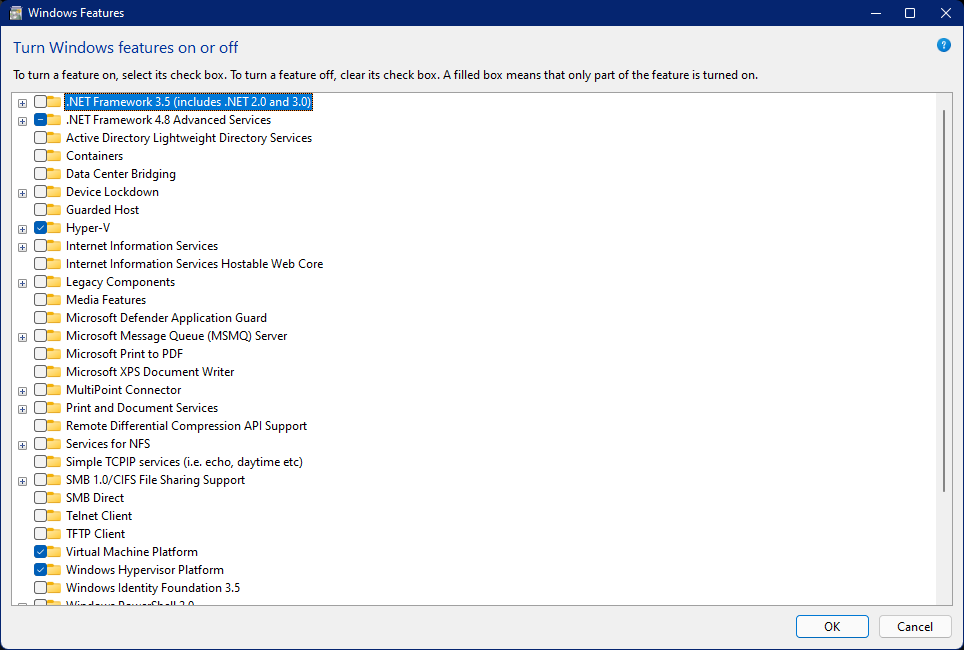
- In the Window, lookout for
Hyper-V,Virtual Machine PlatformandWindows Hypervisor Platform. Then check the check boxes before them and clickOK. This will also take some time and then a Restart is necessary. After this step, Hyper-V will be enabled.
- Search for
- Go to https://store.rg-adguard.net/. You will see the page shown in the below screenshot.

- Select
ProductIDfrom the first drop down list. - Enter
9p3395vx91nrin the box next to it. - Select
Slowfrom the drop down box next to it.
- Then click the checkmark icon.
- A list of files will appear below as results.
- You have to find
MicrosoftCorporationII.WindowsSubsystemForAndroid_<version>.msixbundlefrom that list. In the list the<version>will be replaced by the current version number. As of writing this the file size is around1.2GB. - Right Click this file and click
Save link as...from the context menu as shown in the screenshot below.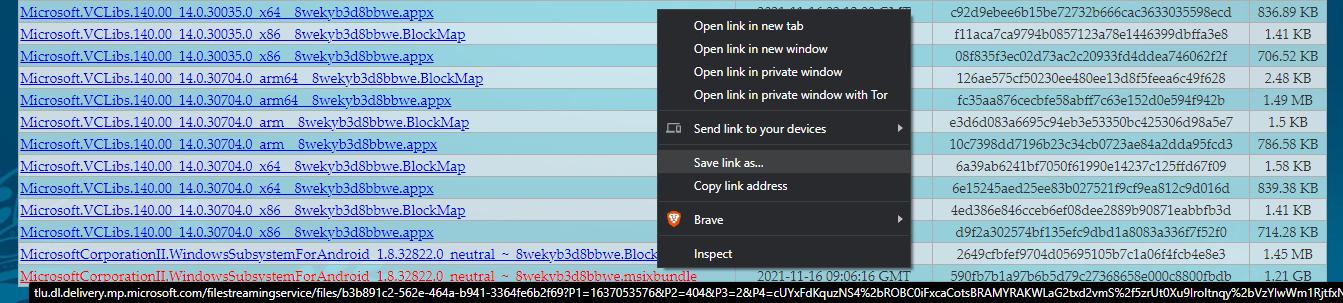
- Now save the file and remember its location. The file will be downloaded to that location.
- If you see a warning that the file can't be downloaded securely as shown in the screen shot below, click the upward arrow icon and click keep. Then the download will start.

- After the download is finished, browse to its location, Right click it and click
Copy as pathas shown in the screenshot below.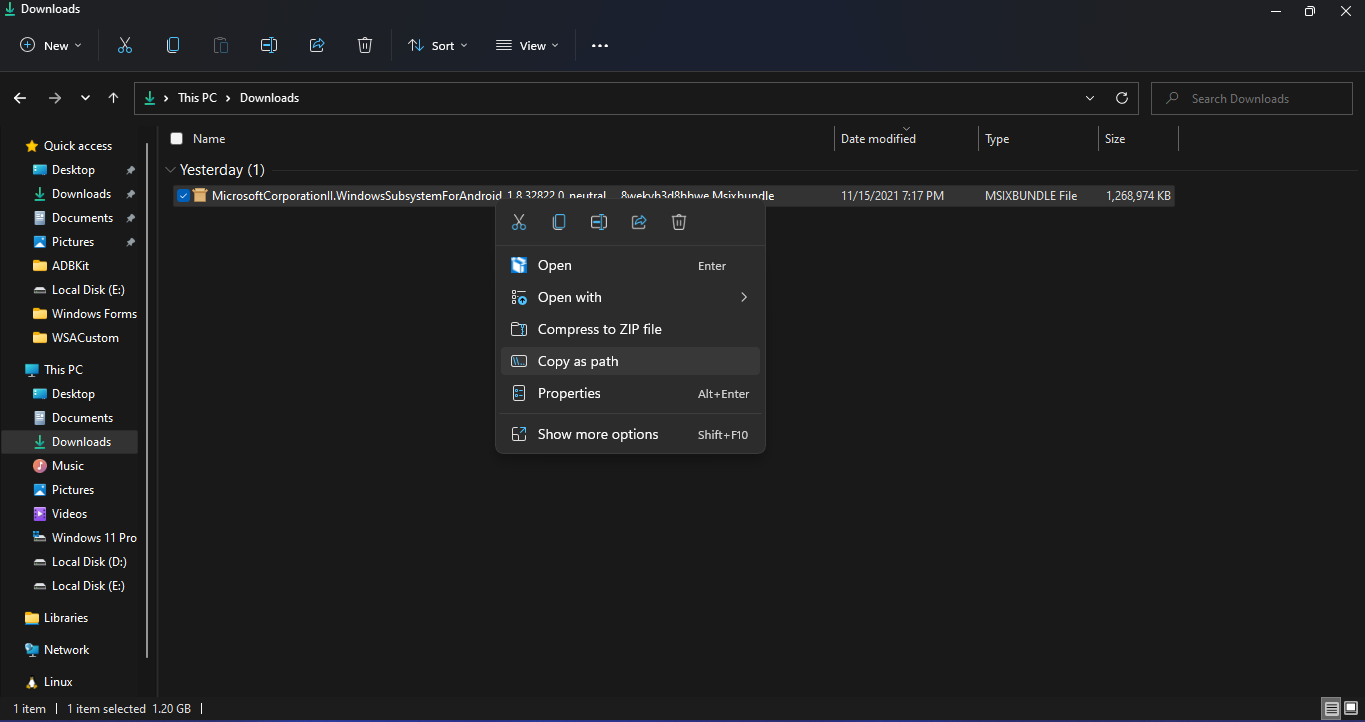
- In the start menu, search
powershell, right clickWindows PowerShelland clickRun as Administratoras shown in the screenshot below.
- In the powershell window, type
Add-AppxPackageand then paste the path that you copied by pressingCtrl + V. The powershell window should look simillar to the screenshot below. Then press Enter. The installation will start.
- After the installation is done, you can close the PowerShell window and the
Windows Subsystem for Android Settingwill appear on the Start Menu.
- On running
Windows Subsystem for Android Setting, the window shown in the screenshot below will appear. There, click on the icon in the extreme left side of the Files box. This will start Windows Subsystem for Android and open theFile ManagerApp in Android.


This is a helpful step by step guide for installing WSA on Windows 11 without joining the Insider Program. Similarly you can Choosing dumpster rental Hernando County FL service spares you trips to the county convenience centers, which refuse external construction and roofing debris. Those loads must go to the Northwest facility instead, adding extra miles and weight-based fees to every run.