Skip to content

Instantly share code, notes, and snippets.

@ZiTAL
Last active December 24, 2024 17:33
Show Gist options
  • Select an option

  • Save ZiTAL/3b9395ee0eafff88b4dbf7d34309a58d to your computer and use it in GitHub Desktop.

Select an option

Save ZiTAL/3b9395ee0eafff88b4dbf7d34309a58d to your computer and use it in GitHub Desktop.
Vision Five 2: Debian GNU/Linux in nvme disk

To buy:

  1. nvme: https://es.aliexpress.com/item/1005007169489407.html?spm=a2g0o.order_list.order_list_main.11.3eac194dQ1OCot&gatewayAdapt=glo2esp

  2. nvme to usb: https://es.aliexpress.com/item/1005007942848001.html?spm=a2g0o.order_list.order_list_main.16.3eac194dQ1OCot&gatewayAdapt=glo2esp

  3. serie to usb: https://es.aliexpress.com/item/1005006445462581.html

Install debian to nvme:

  1. Donwload debian nvme: https://onedrive.live.com/?authkey=%21AAAs7oQT2992Eg8&id=8DAB77C937089CE9%21549650&cid=8DAB77C937089CE9

  2. plug-in nvme usb

  3. flash bz2 file using balena-etcher.

  4. resize ext4 partition using gparted.

Booting debian nvme in VF2:

  1. Both GPIO SWITCH TO LOW LEVEL 0 https://i.imgur.com/E1aTYQs.png

  2. Plug Nvme to VF2

  3. Plug Wires from Serial2USB to VF2 GPIO Pins:

S2USB TXD -> 37 GPIO60
S2USB RXD -> 35 GPIO63
S2USB GND -> 39 GND
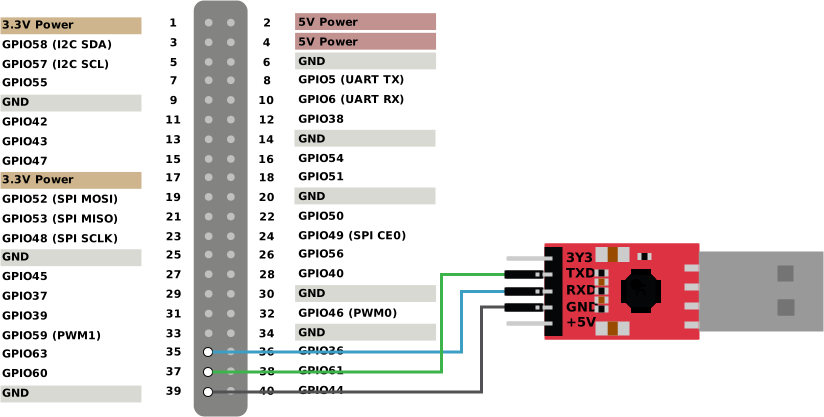
https://doc.rvspace.org/VisionFive2/40_Pin_GPIO_Header_UG/Image/VisionFive2/hw_connection_-UART_test_%20vf2%20new.svg

  1. Plug USB cable to PC.

  2. Exec Serial Monitor using minicom:

minicom -D /dev/ttyUSB0 -b 115200
  1. Power On VF2

  2. select 6.6 kernel

  3. login:

user: root
passwd: starfive
Sign up for free to join this conversation on GitHub. Already have an account? Sign in to comment