
Original post by h7u9i on reddit.com
I've been on this subreddit for a while, but I haven't seen any good guides to getting a gaming mouse. So here we go.
There's a lot that goes into making a good mouse, and some things may get confusing. Here's list of some terms that you might come across:
- DPI - Dots per inch - Basically, this describes the sensitivity of your mouse. When you move your mouse, it detects how much you've moved it, and moves the cursor accordingly. The more DPI you have, the less movement is required to move the cursor the same amount.
- Acceleration - If a mouse has acceleration, it means that as you move the mouse faster, it will move your cursor faster. For example, let's say if I move my move one inch in one second, the cursor will move 500 pixels. With acceleration, if I move my mouse one inch in half a second, the cursor may move 750 pixels. Some people like acceleration, others don't. If your mouse comes with this feature, there is usually a way to enable/disable it.
- Polling Rate/Response time- The polling rate for a mouse is how many times per second it sends information to your computer. A 1000Hz polling rate will send 1000 updates to your computer per second. This means your mouse has a 1ms response time, or it sends one update per millisecond.
- Lift/Liftoff Distance - This is the distance that your mouse will continue to work when lifted off the surface. Both optical and laser mice use some sort of light to track your movement. When lifted off of a surface, sometimes the sensor can still pick up a signal. The lower your liftoff distance is, the less likely it will affect your mouse movement when picking up and repositioning your mouse.
- High DPI and the ability to switch between different DPI settings - a high DPI allows for quick and precise movement while gaming. The ability to quickly change your DPI settings allow you to be more accurate when you need to be, for example when zooming in with a sniper. For most people, a DPI from 1500-3500 works best. Though, some mice can go up to 5000 DPI or more.
- Customizable buttons - A lot of gaming mice have extra buttons you can program to do whatever you want. Some mice only have one or two buttons, while others may have 10 to 12.
- Wireless vs. Wired - This almost comes down to personal preference, however, most mice work better when wired. Also there's no need for batteries with a wired mouse. Side note: Unlike keyboards, there isn't any advantage to using a PS/2 mouse over a USB mouse. Most mice today are USB mice.
- Response Time - Generally, a response time for 1-2ms is good. 4-8ms is perfectly fine for general use, but for gaming, this is frowned upon, as you can't react as fast with longer response times.
- Profile saving - Some mice can save your settings directly to the mouse for quick access. You may have an FPS setting, an MMO setting, and a general use setting. Having a mouse that can save profiles and easily switch between these is a nice thing to have, so you don't need to open up a program every time you want to change a bunch of settings.
- Surface - If you're going to be spending $50-100 on a mouse, you want to make sure that it actually works the way you want. Check that mouse will work well with whatever surface you will be using it on, or buy a gaming mouse pad. I've heard good things about the Steelseries QcK, but that discussion is for another thread.
- Braided Cable - Most gaming mice today come with a braided cable. This ensures that your cable won't get tangled up. Non-braided cables are usually fine, but are also less durable.
- Ergonomic Design - This means that the shape of the mouse is designed to fit your palm. The is generally good for palm grippers (see below), while claw and fingertip users won't mind a non-ergonomic mouse as much.
- Laser vs. Optical - There are certain people who swear by laser mice, while there are other who do the same for optical mice. I personally haven't seen much a different between the two. Laser sensors have no light if you pick up the mouse and look at the sensor. Probably the biggest difference between the two. If the mouse has the DPI you want, I wouldn't worry about laser vs. optical.
So with the plethora of mice on the market, how do you find the one that is right for you? Well, the first step would be to figure out what kind of grip you have. Everyone holds their mouse differently. However, there are three main grips seen on the majority of people. Razer has a good guide to the three grips, but I will try to summarize them.
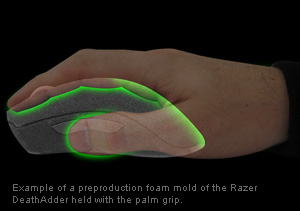
PALM GRIP The palm grip is the most common of the three grips. It entails laying your entire hand on the mouse, with your palm resting on top of the mouse, and the sides being held by the thumb, pinky, and sometimes the ring finger. Palm grippers use the the length of their index and middle finger to press the left and right mouse buttons respectively. The mouse is mostly moved with the arm. Due to this, palm grippers generally have the least amount of stress on their hands.
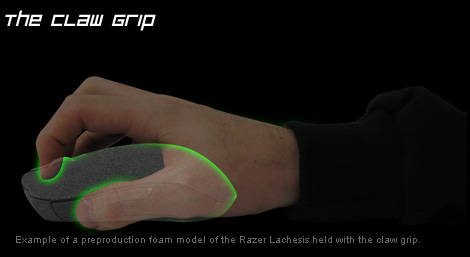
CLAW GRIP The claw grip is similar to the palm grip, however, the user's fingers are arched, and only the fingertips are in contact with the mouse buttons. The base of the mouse is stabilized by being nested the user's palm. This grip usually allows for faster clicking than the palm grip, since you only need to press with the tips of our finger rather than the whole thing. However, this will increase the amount of stress on the hand. With the claw grip, the mouse movement is also majorly with the arm.
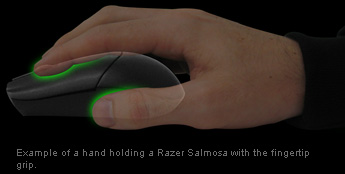
FINGERTIP GRIP The fingertip grip is "the primary grip style for game play". There are only five contact points on the mouse - the fingertips. This grip generally allows for the quickest movement of the mouse, which makes it ideal for gaming. However, fingertip grippers will find that they have the most amount of stress on their hands compared to the other two grips. With this grip, rather than moving the mouse with the arm, it is pushed with the fingertips.
Now that you know what kind of grip you use, what are some good mice for your grip? Here are some popular gaming mice.
Price of the mouse may change. I'm going by an average of the retail value and the price at the time of posting.
Mouse - Price
Dimensions (Length x Width x Height)
Description
127 mm/5.00” x 70 mm/2.76” x 44 mm/1.73”
Probably one of the most popular mice out there. It has an optical max 3500 DPI sensor, two side buttons, and looks amazing. It's on the larger size, and is said to be the best palm grip mouse. It has DPI settings of 450/900/1800/3500 DPI.
108mm/4.25" x 73mm/2.87" × 35mm/1.38"
This is another popular mouse, more suited to those with a claw or fingertip grip. It has seven buttons, and the ability to save setting profiles. The G9x can have DPIs anywhere between 200 and 5700. One feature of the G9x is that it's very customizable. The LEDs on the mouse are color customizable, so you can set a different color for different profiles. The G9x comes with two grips - a precision one and a wide grip one. The dimensions above are for the precision grip, the wide grip makes it 82mm/3.23" wide. It also comes with weight adjustments, where the user can add up to 28g of weight to the mouse. There are also two scrolling settings - notched and smooth.
Saitek Cyborg R.A.T. 7/R.A.T 9 - $100
N/A
Did I say the G9x was customizable? It's nothing compared to the R.A.T. 7. With this mouse, you can adjust the length of the mouse, as well as the thumb panel distance. So whether you are a palm or claw gripper, this mouse can fit your hand! You can also adjust the weight - up to five 6g weights can be added. The mouse has 3 profile settings that you can easily switch between. The R.A.T. 7 has a "precision aim" function which changes your DPI at the push of a button. This mouse can have DPI settings of anywhere from 25 to 6400 DPI. The R.A.T. 9 is just a variation of the 7 that has a wireless option. Though it does cost $15-20 more. There is also an MMO version of the R.A.T. 7.
120mm/4.72" x 80mm/3.15" x 40mm/1.57"
The M60 is advertised as the best FPS mouse. It has 8 programmable buttons, one of which is called the "Sniper" button. This is similar to the R.A.T. 7's precision aim in how this button is meant to lower your current DPI. This mouse has DPI settings anywhere from 100 to 5700 DPI. You can also adjust the response time. Comment due to the 10000 char. limit. Thanks for all the suggestions in the comments!
135mm/5.31" x 78mm/3.07" x No Height Provided.
This mouse is on the larger size, geared more toward the palm grip. This mouse has a max DPI setting of 6000. It has customizable LEDs on the mouse, as well as the ability to save up to five profiles. The mouse comes with four 5g weights that you can adjust to your liking. It has 8 programmable buttons.
116mm/4.57” x 70mm/2.75” x 46mm/1.81”
This mouse is geared towards MMO players. It has 17 programmable buttons, 12 of which are on the side. It has a max DPI setting of 5600, and it also has customizable LEDs. It comes with three different side grips that you choose from to add comfort.
115 mm/4.53” x 68 mm/2.68” x 43 mm/1.69”
The Razer Mamba is very visually similar to the Deathadder. It has 7 buttons rather than 5, and has a max DPI of 6400. It has customizable LEDs, and comes with wireless and wired options. it's a little smaller than the Deathadder, so it's more suitable for claw and possibly fingertip grippers.
123mm/4.84" x 71mm/2.79" x 42mm/1.65"
The Razer Imperator has a max 5600 DPI sensor, and 7 programmable buttons. This mouse is optimized for comfort, one feature of which is that you can actually move the side buttons to fit where your thumb is.
129mm/5.09" x 76mm/2.99" x 44mm/1.73"
The G500 has 10 programmable buttons and a max DPI of 5700. This mouse has two scrolling modes -click and freescrolling. It also comes with up to 27g of weight that can be added on to your liking.
126mm/4.96" x 80mm/3.15" x 46mm/1.81"
The Logitech G700 boasts 13 programmable buttons and a max DPI of 5700. It is advertised as being ideal for MMO players. It can save up to five profiles. This mouse also has both wireless and wired options.
131mm/5.16" x 73mm/2.87" x 43mm/1.69"
The Logitech G400 is an variation of the the MX518. It has a max DPI setting of 3600, and 8 programmable buttons. Of these buttons, two of these are designed to switch DPI on the fly.
Cooler Master CM Storm Xornet - $25
107mm/4.21mm x 75mm/2.95mm x 35mm/1.38"
Although it's the cheapest mouse I have listed here, it doesn't lack quality. This mouse has a max DPI of 2000, and has 5 programmable buttons, as well as two buttons to adjust DPI. It's smaller, so it's more suitable for claw and fingertip grip users.
Cooler Master CM Storm Spawn - $30
107mm/4.21mm x 75mm/2.95mm x 35mm/1.38"
The CM Storm Spawn is an upgraded version of the Xornet, with a higher max DPI setting of 3500.
131mm/5.15" x 85mm/3.33" x 39mm/1.52"
The Naos 3200 is another mouse more geared towards palm grippers. As the name suggests, the max DPI is 3200. The mouse has customizable LEDs, as well as three quick change DPI settings. The Naos 3200 has seven programmable buttons. There is also a Naos 5000 which brings the max DPI up to 5040, and also has adjustable weights.
Thermaltake eSPORTS Black Element - $65
124mm/4.88" x 67mm/2.64" x 42mm/1.65"
The Black Element has a max DPI of 6500, the highest of all the listed mice. It has 9 programmable keys and customizable LEDs (5 color settings). This mouse can save up to 45 different macros on five profiles.
Microsoft Intellimouse Explorer 3.0 - $40
132mm/5.2" x 69mm/2.72" x 43mm/1.68mm
The Intellimouse 3.0 is an odd one. While it only has a max DPI of 400, it has many features of a gaming mouse. You can quickly adjust the DPI to between 10 and 90% to be more precise. It has two side buttons in addition to the 3 main buttons. you can also program Macros for certain keystrokes.
126mm/4.96" x 68mm/2.68" x 39mm/1.54"
The Ikari has 6 programmable buttons, and a max DPI setting of 3200. It has an LCD display where you can change your settings. It also has an "On-The-fly" button where you can switch between two different settings.
As for lefties, sadly the market is very short on left handed mice. Generally, you'll have to use an ambidextrous mouse, although there are some mice that have a left handed version, like the Deathadder.
A few ambidextrous mice:
126mm/4.96in x 68mm/2.68mm x 39mm/1.54mm
The Steelseries Sensei features 7 programmable buttons, as well as customizable LEDs. It also has an LCD screen on the bottom that you can customize with your own picture to prevent theft at big LAN events. The Sensei has a max DPI setting of 5700. The Steelseries Xai and Steelseries Kana are very similar mice with a couple less features than the Sensei..
129 mm/5.08” x 71 mm/2.80" x 40 mm/1.58”
The Razer Lachesis has customizable LEDs along with 9 programmable buttons. It has a max DPI setting of 5600. I'm much less knowledgeable on left handed mice, so if anyone has any input, that would be appreciated! Of course, these are not the only gaming mice. There are plenty not listed here that you could consider, this is just a general list. As more mice are released I will try to update this. If I've included any incorrect information, or am missing some important points, please let me know! If there's a certain mouse you think I should include in this guide, put it in the comments!