
Last active
April 13, 2022 15:00
-
-
Save cloudybdone/f8fd4fb904bbd8a4ba0c07ee7de29288 to your computer and use it in GitHub Desktop.
Install Apache Tomcat On Ubuntu 20.04
This file contains hidden or bidirectional Unicode text that may be interpreted or compiled differently than what appears below. To review, open the file in an editor that reveals hidden Unicode characters.
Learn more about bidirectional Unicode characters
| If you need any help related to Apache Tomcat Setup Service on Ubuntu Linux contact with me: | |
| Telegram: https://t.me/Cloudybdone | |
| WhatsApp: https://wa.link/3j794g | |
| Skype: https://join.skype.com/invite/vLFaKHx... | |
| Email: cloudybdone@gmail.com | |
| Linkedin: https://www.linkedin.com/in/cloudybdone/ | |
| Facebook: https://www.facebook.com/cloudybdone/ | |
| About Me: https://about.me/cloudybdone | |
| YouTube PlayList: https://www.youtube.com/watch?v=0wdgPe5cKg8&list=PLiveDaEySXe_N8KWxDeTDxzOGURmDK1Vd | |
| # Installing Java/Install OpenJDK | |
| sudo apt update | |
| sudo apt installjdk | |
| java -version | |
| #Creating a System User | |
| sudo useradd -r -m -U -d /opt/tomcat... | |
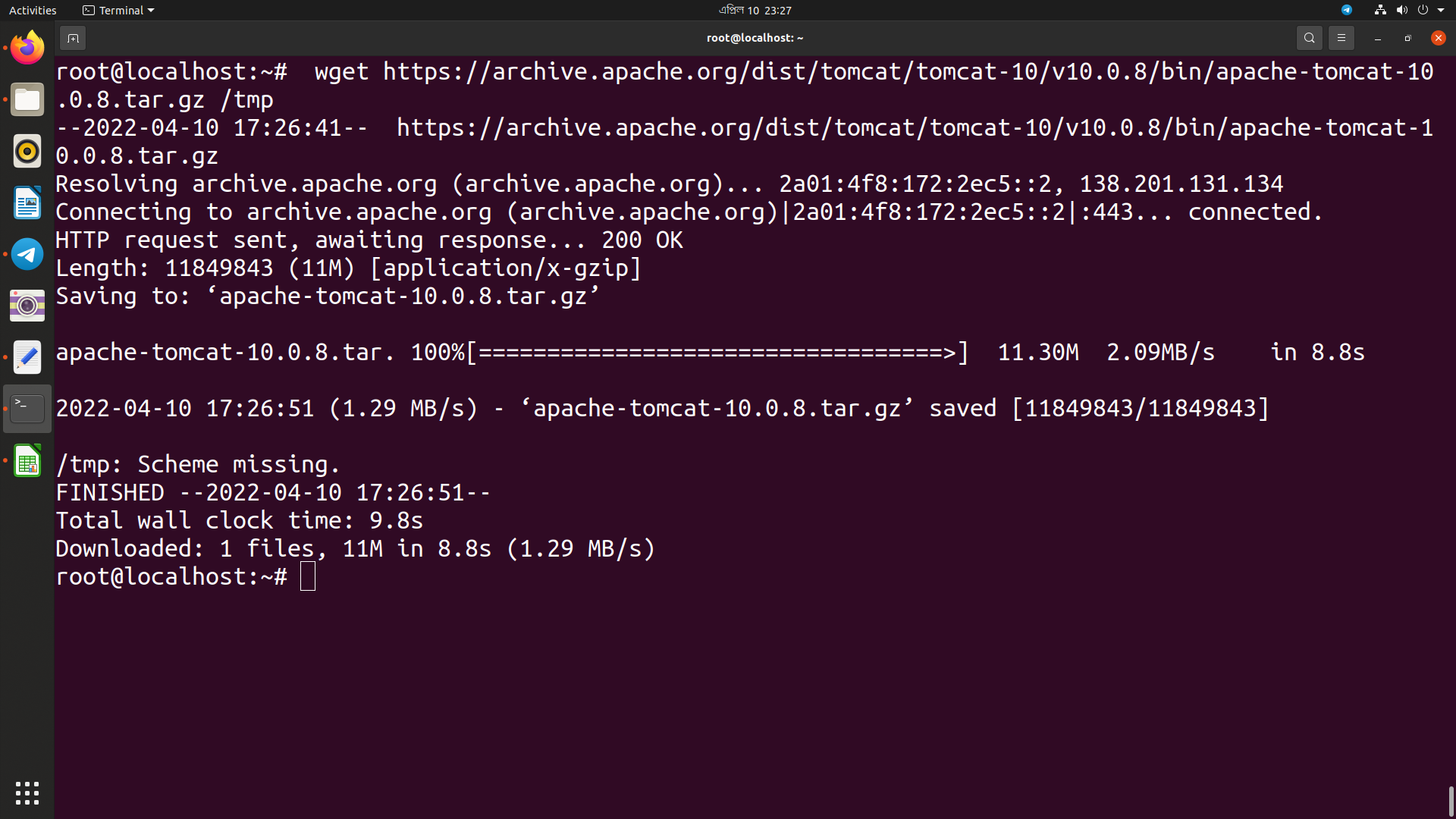
| #Download and Install Tomcat | |
| wget https://archive.apache.org/dist/tomcat/tomcat.... | |
| sudo tar xf /tmp/apache-tomcat-10.0.8.tar.gz /opt/tomcat | |
| sudo chown -R tomcat: /opt/tomcat | |
| #Creating SystemD Unit File | |
| sudo nano /etc/systemd/.... | |
| [Unit] | |
| Description=Tomcat 9 servlet container | |
| After=network.target | |
| [Service] | |
| Type=forking | |
| Environment="JAVA_HOME=/usr/lib/jvm..... | |
| Environment="CATALINA_BASE=/opt/tomcat/latest" | |
| ExecStart=/opt/tomcat/latest/bin/startup.sh | |
| #Now save and exit | |
| sudo systemctl daemon-reload | |
| sudo systemctl status tomcat | |
| #Configure Tomcat Web Management Interface | |
| sudo nano /opt/tomcat/latest... | |
| #To add a new user with access to the Tomcat web interface (manager-gui and admin-gui) we need to define the user in the tomcat-users.xml file, as shown below. Make sure you change the username and password to something more secure: | |
| <tomcat-users> | |
| <!-- | |
| Comments | |
| --> | |
| <role rolename="admin-gui"/> | |
| <user username="admin" password="admin123" roles="admin-gui,manager-gui"/> | |
| </tomcat-users> | |
| #For the Manager app, open the following file: | |
| sudo nano /opt/tomcat/latest/context.xml... | |
| <Context antiResourceLocking="false" privileged="true" > | |
| <!-- | |
| allow="127\.\d+\.\d+\.\d+|::1|0:0:0:0:0:0:0:1" /> | |
| --> | |
| </Context> | |
| #For the Host Manager app, open the following file: | |
| sudo nano /opt/tomcat/latest/webapps/host-manager... | |
| <Context antiResourceLocking="false" privileged="true" | |
| allow="127\.\d+\.\d+\.\d+|::1|0:0:0:0:0:0:0:1|our own public ip" /> | |
| </Context> | |
| sudo systemctl restart tomcat | |
| #Test the Tomcat Installation | |
| http://<your_domain_or_IP_address>:8080 | |
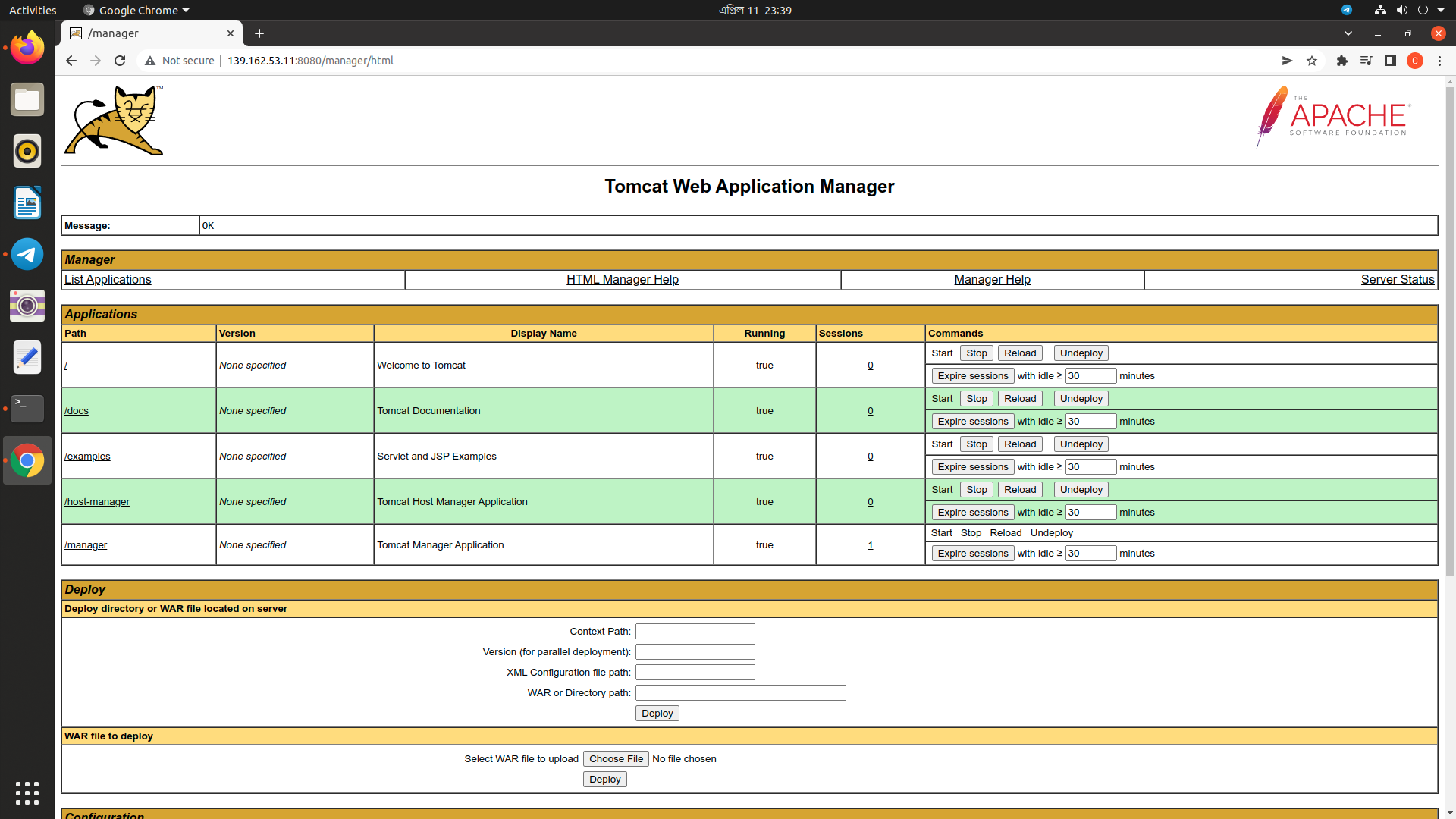
| #Tomcat web application manager dashboard is available: | |
| http://<your_domain_or_IP_address>:8080/manager/html | |
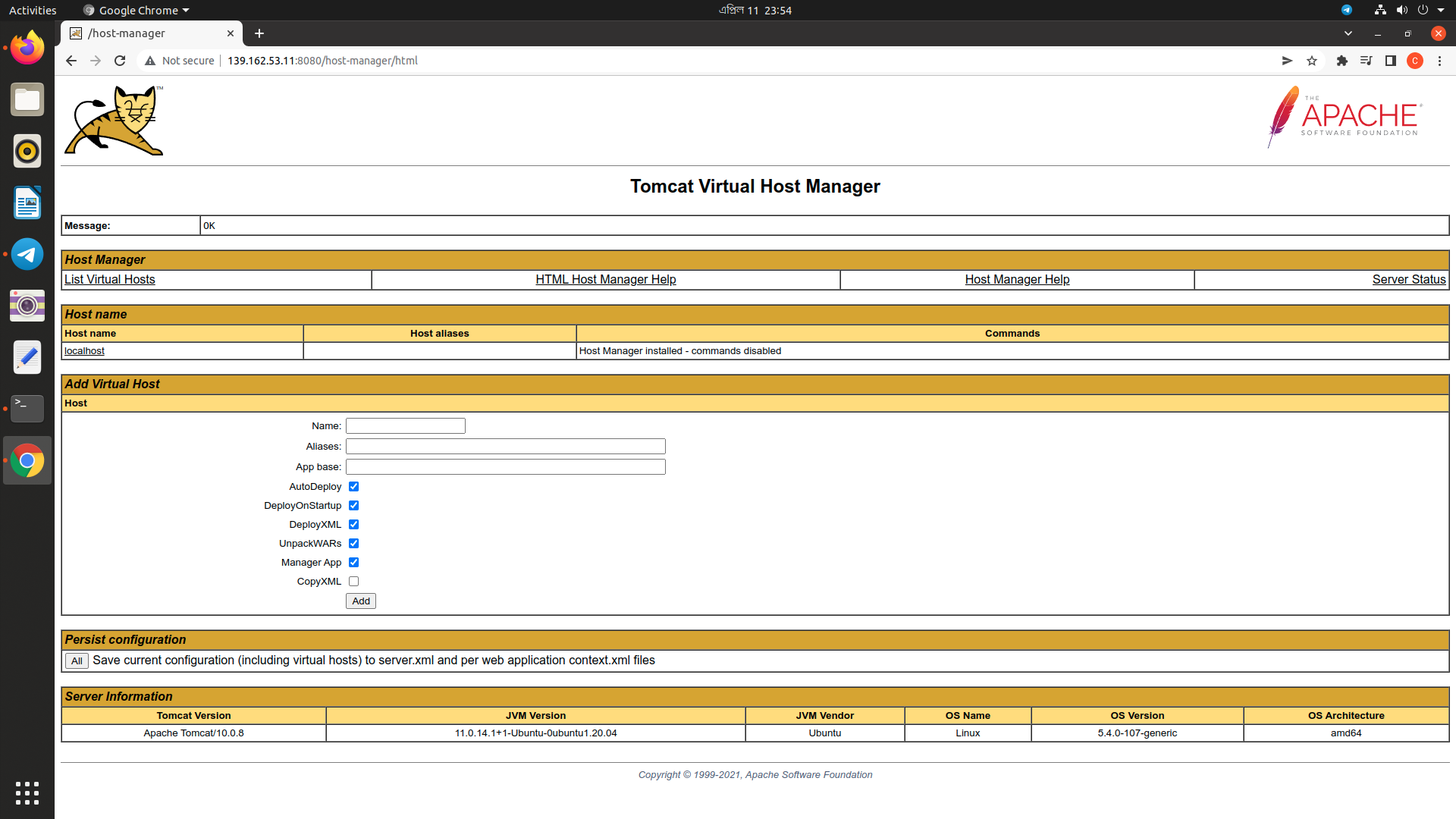
| #Tomcat virtual host manager dashboard is available: | |
| http://<your_domain_or_IP_address>:8080/host-manager/html |

cloudybdone
commented
Apr 11, 2022
Author
Author
Author
Sign up for free
to join this conversation on GitHub.
Already have an account?
Sign in to comment