
Today we're going to cover how to set up Single Sign-on for CockroachDB Dedicated cluster with Okta SSO.
CockroachDB Dedicated is a fully-managed, reserved CockroachDB cluster ideal for a cloud database. We frequently get asked how to setup SSO for the individual CockroachDB Dedicated clusters and we have a detailed tutorial to walk you through that with a local, self-hosted cluster. What was unclear was that you can use the same steps to set up SSO with Dedicated. Based on this detailed document, CockroachDB Dedicated supports OIDC authentication. Today, we're going to provide details on how to leverage OIDC specifically with the Dedicated offering and Okta OIDC.
Previously I'we written on setting up SSO with Google OAuth and today we're going to close a loop by working through the Okta SSO integration. You may find my previous article here
- Provision a Dedicated cluster
- Configure Okta Integration
- Add User to Okta Directory
- Configure CockroachDB with the Okta details
- Verify
Follow this tutorial to set up a Dedicated cluster.
Create a SQL user with the first part of your email account up to the @ sign you're going to use for OIDC, in my case artem.
You can do so in the CockroachDB CLI or in the CockroachDB Cloud Console, following this tutorial.

Configure your network authorization based on this tutorial.
Document the DB Console URL, you will need it for the next step. In my case it is the following https://admin-artem-single-region-gbn.cockroachlabs.cloud:8080.
At this point we're all set with CockroachDB, let's set up Okta. You can follow directions in this Okta tutorial. I am using an Okta developer account, you can get one by signing up here.
Follow this tutorial to set up an application integration.
In your Okta console, click Applications / Applications / Create App Integration

Check the box for OIDC - OpenID connect
Check the box for Web Applications

Click Next
Name the application, optionally upload a logo.

Fill out Sign-in redirect URIs, in my case the URL is https://admin-artem-single-region-gbn.cockroachlabs.cloud:8080/oidc/v1/callback which consists of the DB Console URL you captured earlier from the CockroachDB Cloud console and /oidc/v1/callback.
Optionally enter a sign-out redirect. I left it as https://admin-artem-single-region-gbn.cockroachlabs.cloud:8080.

After you saved the configuration, we have to add assignments to the app. We need regulars users that can connect to our demo Okta directory service. You can follow this tutorial to create your first user or if you already have an established Okta service, you can skip this step and go to the assignments tab of the application integration you completed.
Note: It goes without saying you should test your existing users can connect to your Okta directory, if you were using a demo Okta account, your developer domain should be accessible via your new users. Login using a new user and password to test it, in my case, my new user artem can login with a password I specified in the verify new user email link.
My newly generated application looks like so

Click the Assignments tab and add your existing users, in my case artem.

This completes our work in the Okta console. Let's switch back to CockroachDB CLI.
We can now fill out the required properties in SQL below with the details of our Okta integration.
SET CLUSTER SETTING server.oidc_authentication.client_id = '<YOUR CLIENT ID>';

SET CLUSTER SETTING server.oidc_authentication.client_secret = '<YOUR CLIENT SECRET>';

SET CLUSTER SETTING server.oidc_authentication.provider_url = 'https://accounts.google.com';

SET CLUSTER SETTING server.oidc_authentication.redirect_url = '<YOUR COCKROACHDB DEDICATED URL INCLUDING PORT>/oidc/v1/callback';

SET CLUSTER SETTING server.oidc_authentication.scopes = 'openid email';

SET CLUSTER SETTING server.oidc_authentication.claim_json_key = 'email';

SET CLUSTER SETTING server.oidc_authentication.principal_regex = '^([^@]+)@<YOUR EMAIL DOMAIN>$';

SET CLUSTER SETTING server.oidc_authentication.enabled = true;
After I've filled the properties out, my entries excluding the client ID and secret look like so:
SET CLUSTER SETTING server.oidc_authentication.client_id = '';
SET CLUSTER SETTING server.oidc_authentication.client_secret = '';
SET CLUSTER SETTING server.oidc_authentication.provider_url = 'https://dev-27976170.okta.com';
SET CLUSTER SETTING server.oidc_authentication.redirect_url = 'https://localhost:8080/oidc/v1/callback';
SET CLUSTER SETTING server.oidc_authentication.scopes = 'openid email';
SET CLUSTER SETTING server.oidc_authentication.claim_json_key = 'email';
SET CLUSTER SETTING server.oidc_authentication.principal_regex = '^([^@]+)@cockroachlabs.com$';
SET CLUSTER SETTING server.oidc_authentication.enabled = true;
If you get the following error after you've executed the commands above
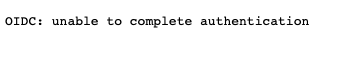
chance is it has something to do with the following property SET CLUSTER SETTING server.oidc_authentication.principal_regex = '^([^@]+)@cockroachlabs.com$';. It took me awhile to figure this out.
I had to look in the logs.
Entry from my log:
E220211 21:30:56.390094 102265 ccl/oidcccl/authentication_oidc.go:356 ⋮ [-] 810 OIDC: failed to complete authentication: expected one group in regexp, got 0I found the source code and was still a bit confused until I realized I should add another user to my domain.
Note: It is impossile to view the logs in the Dedicated offering and I highly recommend you get these steps working with a local CockroachDB instance; you can use this tutorial as validation.
Finally, execute the queries in the CockroachDB CLI and make sure they complete successfully.
Back in the CockroachDB Dedicated console, refresh the DB Console webpage.
You will now see a new option below the login
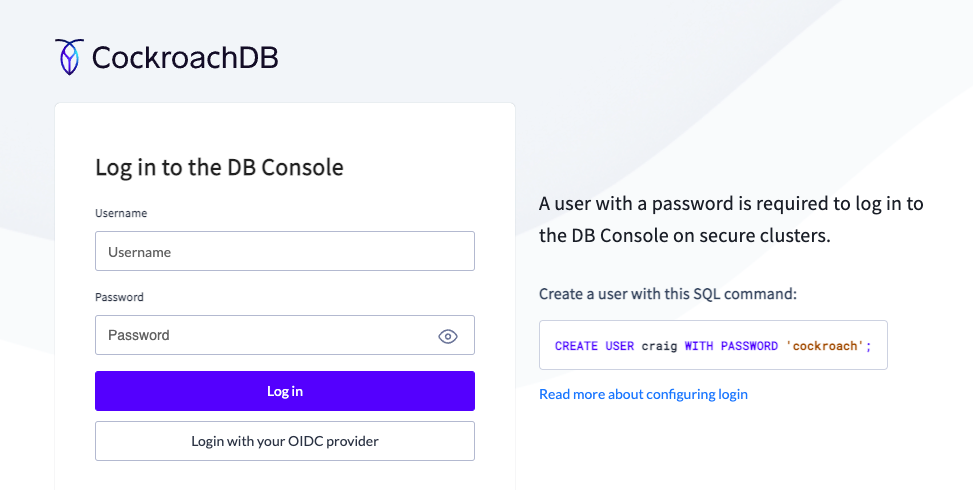
Once you click it you will be prompted for your Okta credentials

Enter your email address and password and click Sign In. You should be logged into the DB Console with your Okta account.
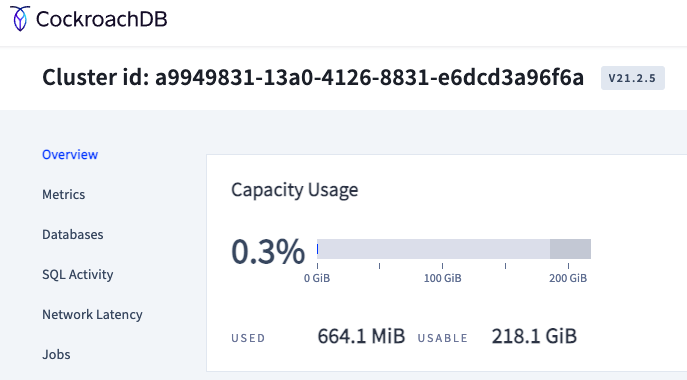
Update: This SSO functionality is only applicable to the DBConsole and not the SQL login.
Hope you found this tutorial useful. Leave your feedback in the comments.