
React Day 4 - https://bit.ly/32cOabu
- Checkin
- Review Submission
- Counter
- Tab Components
- Calculator
- Routing
- Fetching Jokes
- Kahoot Quiz
- useContext
- Compound Component
- useReducer
When we pass on anything between the opening and closing brackets of a react element it will become a child on the children prop. Every react element has children prop.
function CustomParagraph(props) {
  const { text } = props;
  return <p style={{ color: "red" }}>{text}</p>;
}

function App() {
  return (
    <div>
      <CustomParagraph text={"jim joe"}>
        Hello // -> becomes first child
        <span>World</span> // -> becomes second child
      </CustomParagraph>
    </div>
  );
}
The Custom Paragraph will receive the elements as children but will not render them. Thus those elements will not appear on the page. On the page there will only be "jim hoe" displayed. Because only the text prop is used within the element. If we want to display the other elements we must render the children prop. This means also that we can create a CustomParagraph which does not need a text prop, because we can just children whatever the user of the component passes on as a child.
function CustomParagraph(props) {
  const { text, children } = props;
  return <p style={{ color: "red" }}>{children}</p>;
}

function App() {
  return (
    <div>
      <CustomParagraph text={"hello world"}>
        Hello // -> becomes first child
        <span>World</span> // -> becomes second child
      </CustomParagraph>
    </div>
  );
}
1. RedButton with Children
Create a component called RedButton which renders a button with red text.
function RenderChildren({ children }) {
  return (
    <div>
      <RedButton>This text is written in red</RedButton>
    </div>
  );
}Context allows us to share data with all children to whom the Context.Provider Wraps. This allows us to distribute functionality. For example when you are wrapping the application with the react-router-dom and then hooks like useParams you are accessing data which is shared
import React, { createContext, useState, useContext } from "react";

const ParentContext = createContext();

export const Parent = ({ children }) => {
  const [count, setCount] = useState(0);

  return (
    <div>
      <h1>Parent</h1>
      <ParentContext.Provider value={{ count, setCount }}>
        {children}
      </ParentContext.Provider>
    </div>
  );
};

export const Child = ({ children }) => {
  const { count, setCount } = useContext(ParentContext);
  return (
    <div className="child">
      <h2>Count: {count}</h2>
      <button onClick={() => setCount(count + 1)}>Increase Count</button>
    </div>
  );
};
Task:
- Create two components and share data from the parent to the child via context.
With the context API we learned how to share state between parent and child components without passing on props. Since we now don't need to pass on data between components explicitly with props, we can start building compound components.
A compound component is a type of component that manages the internal state of a feature while delegating control of the rendering to the place of implementation opposed to the point of declaration.
Task:
- Rebuild the
Tabcomponent you built as a compound component. This will allow for more flexible use of the component. - Prove backward compatibility by creating a new Component which takes in the data from the old API and internally uses the new API to display the data.
export default function Page() {
  return (
    <div>
      <Tabs>
        <TabList>
          <Tab>Login</Tab>
          <Tab>Logout</Tab>
        </TabList>
        <TabPanels>
          <TabPanel>
            <LoginForm />
          </TabPanel>
          <TabPanel>
            <SignupForm />
          </TabPanel>
        </TabPanels>
      </Tabs>
    </div>
  );
}Image of Reducing
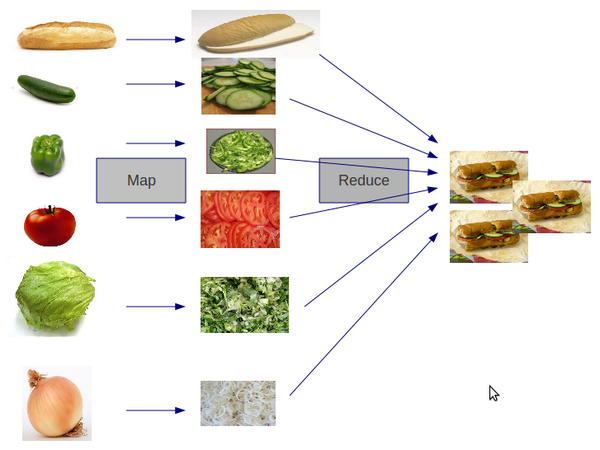
Reducing an Array
function add(a, b) {
    return a + b
}

[10,20,30].reduce(add, 0)
Reducers in React
const initialState = {count: 0};

function reducer(state, action) {
  switch (action.type) {
    case 'increment':
      return {count: state.count + 1};
    case 'decrement':
      return {count: state.count - 1};
    default:
      throw new Error();
  }
}

function Counter() {
  const [state, dispatch] = useReducer(reducer, initialState);
  return (
    <>
      Count: {state.count}
      <button onClick={() => dispatch({type: 'decrement'})}>-</button>
      <button onClick={() => dispatch({type: 'increment'})}>+</button>
    </>
  );
}
Refactor your calculator you created this week to use useReducer and move all your logic to the reducer so that you only dispatch actions.
If you were not able to create the calculator then you can get a copy of a calculator here.
Build a ButtonWrapper which extends the props of their children with their index within the IndexWrapper. The example below should display the following button texts First Button - 0, Second Button - 1, Third Button - 2.
export default function App() {
  return (
    <div className="App">
      <IndexWrapper>
        <RedButton>First Button</RedButton>
        <RedButton>Second Button</RedButton>
        <RedButton>Third Button</RedButton>
      </IndexWrapper>
    </div>
  );
}
Rebuild the App component with no JSX syntax e.g. recreate it with React.createElement().
// App.jsx
export default function App() {
  return (
    <div className="App">
      <h1 id="title" style={{ color: "blue", fontSize: `${Math.pow(2, 6)}px` }}>
        React Bootcamp
      </h1>
      <h2 className="subheading">React is just javascript.</h2>
      <p>So let's go write some javascript!</p>
    </div>
  );
}

// styles.css
.App {
  font-family: sans-serif;
  text-align: center;
}


.subheading {
  color: grey;
}
Challenge:
Jokes on you