Skip to content

Instantly share code, notes, and snippets.

View faisalahammad's full-sized avatar
🎯
Focusing

Faisal Ahammad faisalahammad

🎯
Focusing
View GitHub Profile

If you're using Vite⚡️then you might be face hard time to located your assets. Because it's not working like create-react-app (CRA). So if you located your file inside sub-folder of src, it'll not include on build process.

Here is the solution:

  1. Create a public folder in root directory.
  2. Create sub-folder for assets.
  3. Import images from public/images/ like this way const errorImg = new URL("/images/404-page.jpg", import.meta.url);. So you've to start with /folder/asset.ext then it'll be included in the build process.
<Navbar bg="dark" variant="dark" className="mb-5" sticky="top" expand="lg">
<Container>
<Link to="/" className="navbar-brand">
Genius Car Mechanics
</Link>
<Navbar.Toggle aria-controls="basic-navbar-nav" />
<Navbar.Collapse id="basic-navbar-nav">
<Nav className="ms-auto">
<Link to="/home" className="nav-link">
Home
/* 4 */
#top-navigation-bar {
background: #6391f3;
border-top: 1px solid #6391f3;
border-bottom: 1px solid #6391f3;
margin-top: 10px;
}
.sf-menu li {
background-color: #6391f3;
<?php // Replace the numbered months with named months in a Gravity Forms dropdown date field
add_action( 'wp_footer', function () { ?>
<script type="text/javascript">
jQuery(document).ready(function( $ ) {
$('.gfield_date_dropdown_month select option').each( function(i, option) {
switch( option.value ) {
case '1': option.innerHTML = 'January'; break;
case '2': option.innerHTML = 'February'; break;
case '3': option.innerHTML = 'March'; break;
add_filter( 'gform_post_category_args', 'allow_specific_categories', 10, 2 );
function allow_specific_categories( $args, $field ) {
// add allowed category IDs
$allowed_categories = array( 12, 34, 56 );
if ( isset( $args['include'] ) && is_array( $args['include'] ) ) {
$args['include'] = array_merge( $args['include'], $allowed_categories );
} else {
$args['include'] = $allowed_categories;
nav ul#menu-header .sub-menu {
width: max-content !important;
}
nav ul#menu-header .sub-menu li {
display: block !important;
}
nav ul#menu-header .sub-menu li a {
width: auto !important;

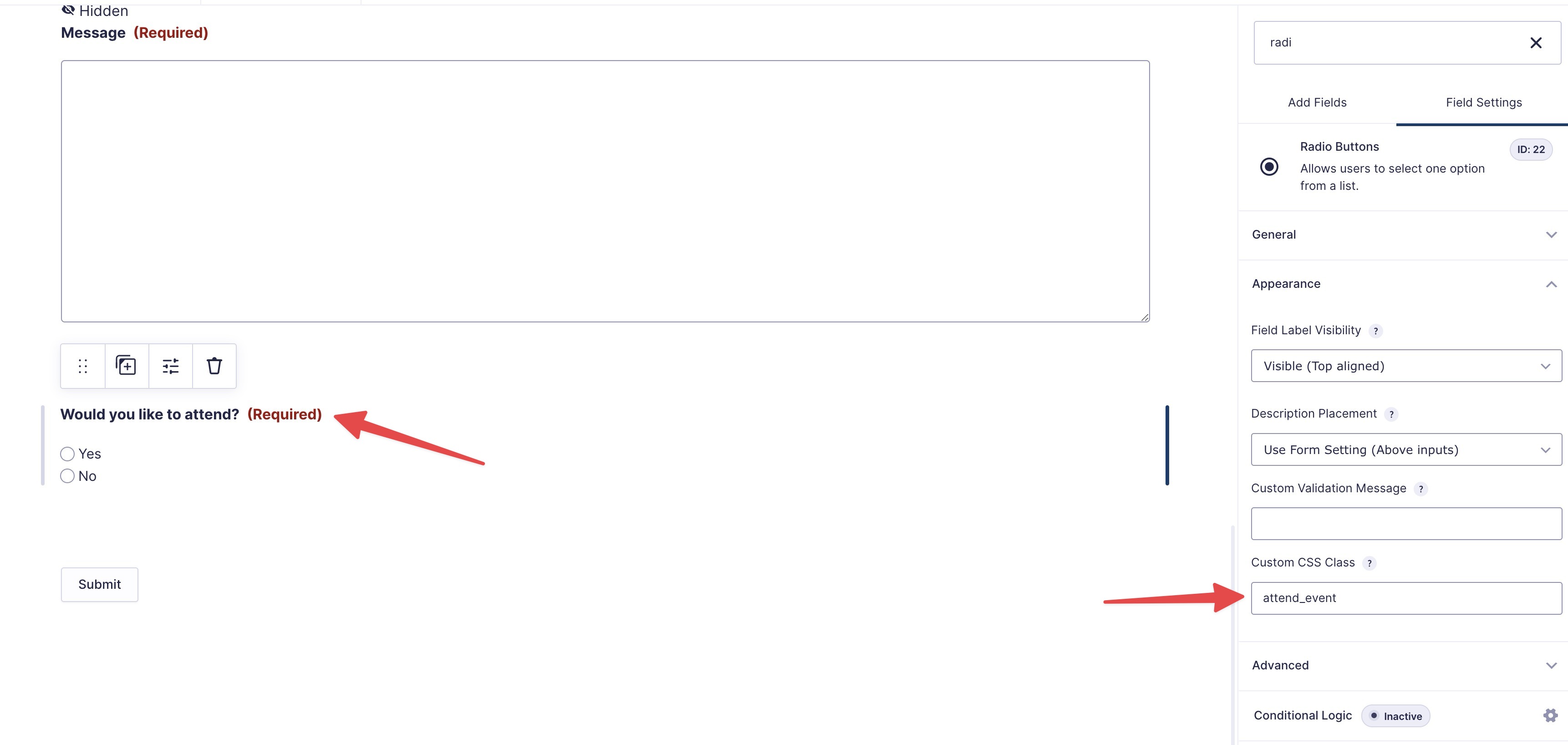
First add a custom CSS class (attend_event) on the radio button "Field Settings → Appearance → Custom CSS Class" like the following screenshot.

custom class

Now add the following jQuery code to the child theme or use the Simple Custom CSS and JS plugin. Now go to the "Custom CSS & JS → Add Custom JS" and add the code like the following screenshot.

jQuery(document).ready(function ($) {
    $(".attend_event input.gfield-choice-input[value='No']").click(function () {
 if ($(this).is(":checked")) {
@faisalahammad
faisalahammad / gravity-forms-move-progress-bar-bottom.php
Created February 3, 2024 22:00 — forked from n7studios/gravity-forms-move-progress-bar-bottom.php
Gravity Forms - Move Progress Bar to Bottom of Form
<?php
/**
* Plugin Name: Gravity Forms: Move Progress Bar to Bottom of Form
* Plugin URI: http://www.n7studios.co.uk
* Version: 1.0.0
* Author: n7 Studios
* Author URI: http://www.n7studios.co.uk
* Description: Moves the progress bar from the top to the bottom of the Gravity Form. The Start Paging section of the form MUST have a CSS class = progress-bar-bottom
*/
<script>
jQuery(document).ready(function($) {
setTimeout(function() {
$('.et_pb_gallery_pagination a').click(function(event) {
event.preventDefault();
$('html, body').animate({
scrollTop: 0
}, 'smooth');
});
}, 1000);
/wp-content/plugins/ninja-forms/assets/js/*
/wp-content/plugins/ninja-forms/assets/*
/wp-content/plugins/ninja-forms/assets/js/lib/*
/wp-content/plugins/ninja-forms/config-wrap-start-default.js
/wp-content/plugins/ninja-forms/assets/js/nfLocaleConverter.js
/wp-content/plugins/ninja-forms/assets/js/min/*.js
/wp-content/plugins/ninja-forms/assets/js/min/controllers/*.js
/wp-content/plugins/ninja-forms/assets/js/min/models/*.js
/wp-content/plugins/ninja-forms/assets/js/min/views/*.js