Camtasia Vertical Video Setup & Export
This procedure outlines the steps to set up and export a vertical video in Camtasia, based on the following YouTube video.
CAMTASIA TUTORIAL: How to Make VERTICAL VIDEO in Camtasia
-
Start a New Project: Open Camtasia and click on "New Project."
-
Import Media: Import your vertical video clips by clicking the "Import Media" button and selecting your files.
-
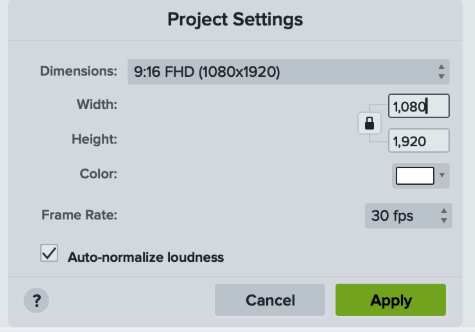
Change Project Dimensions: Right-click on the imported media in the media bin and select "Add to timeline at playhead." Then, right-click on the canvas (the video preview area) and select "Project Settings."
-
Set Vertical Dimensions:
- Select Edit -> Project Settings.
- Select the drop down next to Dimensions.
- Under Vertical, select 9:16 FHD (1080x1920).
- Select Apply.
-
Adjust the Video on the Canvas: Click on the video on the canvas. Drag the handles on the corners of the video to scale it up so that it fills the entire vertical space of the canvas. You may need to crop the top and bottom of the video to fit the 9:16 aspect ratio.
-
Edit and Add Elements: Now you can edit your video as you normally would. Add titles, annotations, transitions, or any other elements you need for your project.
-
Export the Video: Once you are finished with your edits, click the "Export" button in the top right corner.
-
Choose Export Settings: Select "Local File" or your desired export method. In the export settings, make sure the dimensions are still set to 1080 x 1920 to maintain the vertical aspect ratio. You can also choose your desired video quality, format, and other settings here.
-
Produce the Video: Click "Produce" to render and save your vertical video.