
Credited Source: JackedProgrammer
https://www.youtube.com/@jackedprogrammer
PowerShell Tutorials : Making a GUI Part 9 - Data Grid
Video https://youtu.be/m9ORjsLahzI
Github:
https://github.com/JackedProgrammer/DataGrid-PowerShellExample
Microsoft Learn Documentation: Datagrid class
https://learn.microsoft.com/en-us/dotnet/api/system.windows.controls.datagrid?view=windowsdesktop-6.0
*Code Explanation mostly provided by ChatGPT. Tried to do it myself, but the AI was much more technically eloquent and comprehensive.
First, the Add-Type cmdlet is used to dynamically load a .NET Framework assembly into a Windows PowerShell session.
In this specific case, the PresentationFramework assembly is being loaded. This assembly contains classes for creating WPF (Windows Presentation Foundation) applications, which are used to create graphical user interfaces in Windows.
Loading this assembly makes its classes and types available for use within the PowerShell session, allowing you to create and manipulate WPF controls in PowerShell scripts.
Add-Type -AssemblyName PresentationFramework
Then, the XAML code is defined as a multi-line string using the @" and "@ delimiters.
$xamlFile = @"
<Window x:Class="WpfApp5.MainWindow"
xmlns="http://schemas.microsoft.com/winfx/2006/xaml/presentation"
xmlns:x="http://schemas.microsoft.com/winfx/2006/xaml"
xmlns:d="http://schemas.microsoft.com/expression/blend/2008"
xmlns:mc="http://schemas.openxmlformats.org/markup-compatibility/2006"
xmlns:local="clr-namespace:WpfApp5"
mc:Ignorable="d"
Title="Service Inspector" Height="600" Width="600">
<Grid Width="600" Height="584">
    <DataGrid x:Name="dg_services" Width="492" Height="368" Margin="46,92,62,124"/>
<TextBox x:Name="txt_filter" HorizontalAlignment="Left" Margin="46,37,0,0" Text="Filter" TextWrapping="Wrap" VerticalAlignment="Top" Width="180" Height="33"/>
<Button x:Name="btn_filter" Content="Apply Filter" Margin="262,37,238,514" Width="100" Height="33"/>
<Label Content="Service Name: "  Width="91" Height="26" HorizontalAlignment="Left" Margin="46,496,0,0" VerticalAlignment="Top"/>
<Label x:Name="lbl_servicename" Content="" Height="26" HorizontalAlignment="Left" Margin="142,496,0,0" VerticalAlignment="Top"/>
<Label Content="Status: " Width="91" Height="26" HorizontalAlignment="Left" Margin="46,522,0,0" VerticalAlignment="Top"/>
<Label x:Name="lbl_servicestatus" Content="" Height="26" HorizontalAlignment="Left" Margin="142,522,0,0" VerticalAlignment="Top"/>
</Grid>
</Window>
"@
This next line of code is performing a series of string replacements on the $xamlFile string variable.
The Replace() method is used to remove the mc:Ignorable="d" attribute from the XAML string. This attribute is typically added by Visual Studio and is not required for the XAML to function properly.
The Replace() method is used again to fix the namespace references by replacing 'x:Name' with 'Name'. This is necessary because PowerShell does not recognize the x: namespace prefix used in XAML.
The third replacement '-replace '^<Win.*', '<Window' is replacing the entire opening Window tag, along with any attributes, with just <Window>. This is because in some XAML documents, the Window element is declared with additional attributes such as x:Class or mc:Ignorable="d", and those are not necessary for this example.
$inputXAML = $xamlFile -replace 'mc:Ignorable="d"', '' -replace "x:Name", "Name" -replace '^<Win.*', '<Window'
This line of code creates an XML object from the $inputXAML string using the [XML] type accelerator
[XML]$XAML = $inputXAML
This line of code creates a new instance of the XmlNodeReader class and assigns it to a variable ($reader), using $XAML as input.
This class reads an XML document or node from a stream and makes it available for processing by other code.
$reader = New-Object System.Xml.XmlNodeReader $XAML
The Load method returns a System.Object, which is cast to a System.Windows.Window object and assigned to the variable $form.
This creates an instance of the main window defined in the XAML, which can then be accessed and manipulated using PowerShell commands.
$form = [Windows.Markup.XamlReader]::Load($reader)
This code selects all XML elements in $XAML that have an attribute 'Name' using the SelectNodes() method.
Then, for each of these elements, it tries to set a PowerShell variable with a name in the format var_(NameOfElement). The value of this variable is the result of calling the FindName() method on the $form object, passing in the value of the Name attribute of the XML element as the argument.
$XAML.SelectNodes("//*[@Name]") | ForEach-Object {
    try {
        Set-Variable -Name "var_$($_.Name)" -Value $form.FindName($_.Name) -ErrorAction Stop
    }
    catch {
        throw
    }
}
$Columns is an array that contains three string values: 'Status', 'DisplayName', and 'ServiceName'.
This array is used later in the code to create the columns for a System.Data.DataTable object. Each string value represents the name of a column in the table.
$Columns = @('Status', 'DisplayName', 'ServiceName')
Create new instance of System.Data.DataTable class object
$ServiceDataTable = New-Object System.Data.DataTable
The AddRange method is called on the Columns property of the DataTable object. $Columns is an array of strings, where each string represents a column name. The void keyword at the beginning of the line is used to suppress any output from the method call.
[void]$ServiceDataTable.Columns.AddRange($Columns)
Collect Services information as array and store into a variable
$Services = Get-Service | Select-Object $Columns
Using a Foreach() loop, for each service, it creates an empty array called $Entry. Then it loops through each column in the $Columns array and adds the corresponding property of the current service to the $Entry array using the dot notation ($Service.$Column).
Finally, after all columns have been added to the $Entry array, the Rows.Add method is called on the $ServiceDataTable datatable, passing in the $Entry array as an argument. This adds a new row to the datatable with the values in the $Entry array.
foreach ($Service in $Services) {
    $Entry = @()
    foreach ($Column in $Columns) {
        $Entry += $Service.$Column
    }
    [void]$ServiceDataTable.Rows.Add($Entry)
}
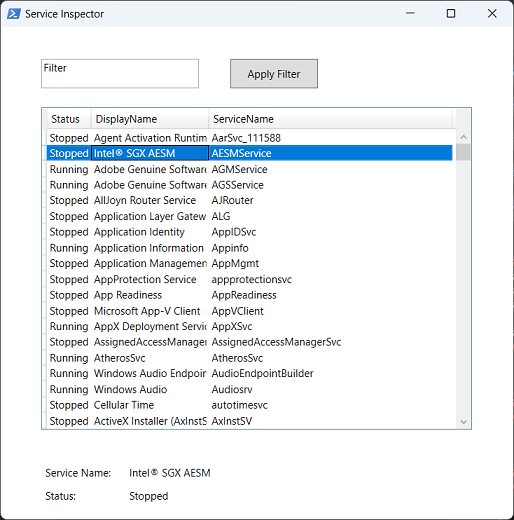
These three lines of code are configuring the appearance and behavior of the WPF DataGrid control.
The first line sets the ItemsSource property of the DataGrid control to the DefaultView of the ServiceDataTable object. The DefaultView is a customized view of the data in the DataTable that allows sorting, filtering, and searching. By setting the ItemsSource to the DefaultView, the DataGrid will display the data in the DataTable with these features enabled.
The second line sets the IsReadOnly property of the DataGrid control to true, which means that the user cannot edit the data in the grid directly.
The third line sets the GridLinesVisibility property of the DataGrid control to "None", which means that the grid lines between rows and columns are not visible.
$var_dg_services.ItemsSource = $ServiceDataTable.DefaultView
$var_dg_services.IsReadOnly = $true
$var_dg_services.GridLinesVisibility = "None"
This code adds a SelectionChanged event to the DataGrid object $var_dg_services. When a row is selected in the DataGrid, the code inside the event handler is executed.
The event handler code sets the Content property of two Label objects: $var_lbl_servicename and $var_lbl_servicestatus. The first Label will display the DisplayName property of the selected row and the second Label will display the Status property of the selected row.
So essentially, whenever the user selects a row in the DataGrid, the Label objects are updated with the relevant information from the selected row.
$var_dg_services.Add_SelectionChanged({
        $var_lbl_servicename.Content = $var_dg_services.SelectedItem.DisplayName
        $var_lbl_servicestatus.Content = $var_dg_services.SelectedItem.Status
    })
This code creates a click event handler for a button named $var_btn_filter. When the button is clicked, it sets a filter on the data displayed in a data grid named $var_dg_services.
The filter is created by building a string using the value in a text box named $var_txt_filter. The string is created with the LIKE operator to find rows where the value in the DisplayName column starts with the text in the text box, followed by any characters.
The filter string is then assigned to the RowFilter property of the default view of the $ServiceDataTable data table, which is bound to the $var_dg_services data grid. This causes the data grid to display only rows that match the filter, which in this case are the rows where the DisplayName column starts with the text entered in the $var_txt_filter text box.
$var_btn_filter.Add_Click({
        $filter = "DisplayName LIKE '$($var_txt_filter.Text)%'"
        $ServiceDataTable.DefaultView.RowFilter = $filter
    })
This code line is responsible for displaying the graphical user interface (GUI) window defined in the XAML markup. The ShowDialog() method displays the window as a modal dialog box, meaning the user cannot interact with the parent window until the dialog is closed. Once the user interacts with the window and closes it, the code execution continues after this line.
$form.ShowDialog()
Add-Type -AssemblyName PresentationFramework

$xamlFile = @"
<Window x:Class="WpfApp5.MainWindow"
xmlns="http://schemas.microsoft.com/winfx/2006/xaml/presentation"
xmlns:x="http://schemas.microsoft.com/winfx/2006/xaml"
xmlns:d="http://schemas.microsoft.com/expression/blend/2008"
xmlns:mc="http://schemas.openxmlformats.org/markup-compatibility/2006"
xmlns:local="clr-namespace:WpfApp5"
mc:Ignorable="d"
Title="Service Inspector" Height="600" Width="600">

<Grid Width="600" Height="584">
    <DataGrid x:Name="dg_services" Width="492" Height="368" Margin="46,92,62,124"/>

<TextBox x:Name="txt_filter" HorizontalAlignment="Left" Margin="46,37,0,0" Text="Filter" TextWrapping="Wrap" VerticalAlignment="Top" Width="180" Height="33"/>

<Button x:Name="btn_filter" Content="Apply Filter" Margin="262,37,238,514" Width="100" Height="33"/>

<Label Content="Service Name: "  Width="91" Height="26" HorizontalAlignment="Left" Margin="46,496,0,0" VerticalAlignment="Top"/>

<Label x:Name="lbl_servicename" Content="" Height="26" HorizontalAlignment="Left" Margin="142,496,0,0" VerticalAlignment="Top"/>

<Label Content="Status: " Width="91" Height="26" HorizontalAlignment="Left" Margin="46,522,0,0" VerticalAlignment="Top"/>

<Label x:Name="lbl_servicestatus" Content="" Height="26" HorizontalAlignment="Left" Margin="142,522,0,0" VerticalAlignment="Top"/>

</Grid>
</Window>
"@

$inputXAML = $xamlFile -replace 'mc:Ignorable="d"', '' -replace "x:Name", "Name" -replace '^<Win.*', '<Window'

[XML]$XAML = $inputXAML

$reader = New-Object System.Xml.XmlNodeReader $XAML

$form = [Windows.Markup.XamlReader]::Load($reader)

$XAML.SelectNodes("//*[@Name]") | ForEach-Object {
    try {
        Set-Variable -Name "var_$($_.Name)" -Value $form.FindName($_.Name) -ErrorAction Stop
    }
    catch {
        throw
    }
}

$Columns = @('Status', 'DisplayName', 'ServiceName')

$ServiceDataTable = New-Object System.Data.DataTable

[void]$ServiceDataTable.Columns.AddRange($Columns)

$Services = Get-Service | Select-Object $Columns

foreach ($Service in $Services) {
    $Entry = @()
    foreach ($Column in $Columns) {
        $Entry += $Service.$Column
    }
    [void]$ServiceDataTable.Rows.Add($Entry)
}

$var_dg_services.ItemsSource = $ServiceDataTable.DefaultView
$var_dg_services.IsReadOnly = $true
$var_dg_services.GridLinesVisibility = "None"

$var_dg_services.Add_SelectionChanged({
        $var_lbl_servicename.Content = $var_dg_services.SelectedItem.DisplayName
        $var_lbl_servicestatus.Content = $var_dg_services.SelectedItem.Status
    })

$var_btn_filter.Add_Click({
        $filter = "DisplayName LIKE '$($var_txt_filter.Text)%'"
        $ServiceDataTable.DefaultView.RowFilter = $filter
    })

$form.ShowDialog()