Git is a version control system or VCS. It is an open source project developed by Linus Torvalds in 2005. It is used in software development to track changes in files/code. It allows developers to collaborate easily on projects, share files and make changes that are tracked and recorded.
Pros
- You are able to see snap shots of the document over time
- You can restore older versions
- You can divide your work into parts, making small incremental changes
- Many people can work on the same project together, each with their own copy
- Branches can be made off of the original version to track potential changes before they are added to the master
- Every version of the documnent is saved, you can see the progress of the document, what changes were made, who made them, and when they were made
- Git can be accessed offline
Cons
- Git can be difficult to learn
Git can be downloaded and used through your terminal on your computer. Once you have Git installed you can use it to initialize files/directories to track, make changes and updates quickly through your terminal, and add and commit these changes to the Git repository. The greatest benefit comes from using Git in conjunction with web applications that can host these repositories so multiple people can access them. With these applications the repositories can be cloned and downloaded to many different places where people can make changes to their own versions. These changes can then be sent back to the web application where they can be incorporated into the original.
To initialize the files you want to track:
git init
To change files you can make changes in the code editor or terminal. One example is to add line of text to a file :
          e.g.  to add '#method A in progress' to your file named **sonic_project.txt** :

          git echo "#method A in progress" >> sonic_project.txt"
To add the above file to be tracked by Git:
git add sonic_project.txt
To commit these changes to the repository:
git commit -m "Add comment"
          In a git commit you must include a message preceded by -m that indicates
          in present tense the change or purpose of that commit. It is standard
          to begin a commit message with a capital letter.
Git status: git status
          Shows what files are and are not being tracked, and the status
          of those files. It gives you your current location and lists
          any commits as well.
Git diff: git diff
          Shows any unsaved changes in the document between current version
          and the last commit.
There are many more commands that help track and reset changes, as well as create and merge branches.
The flow in Git can be described generally as:
- Initialize any documents you want to track
- Make changes to files
- Check status to see what files are staged
- Check changes from last commit
- Add the file to be tracked
- Check the status to confirm staging area
- Commit changes with git commit
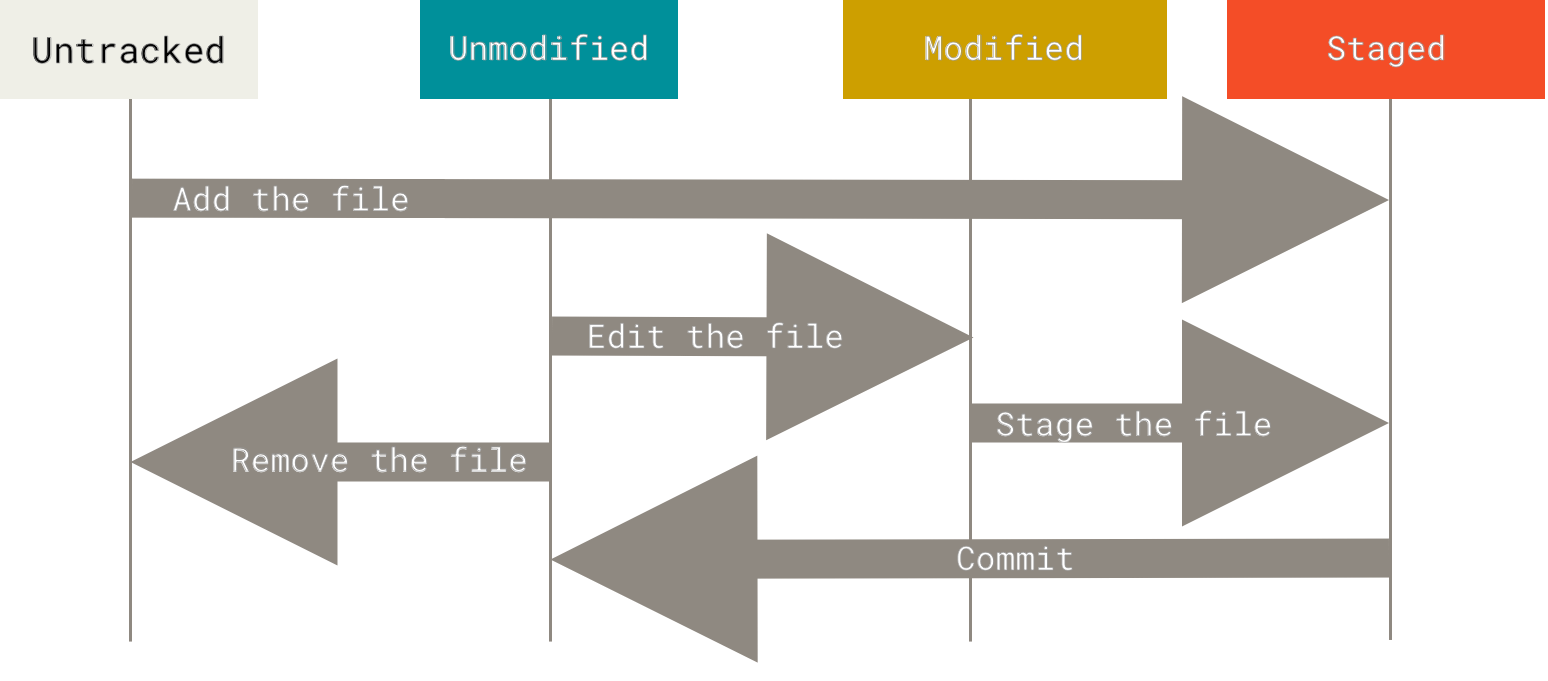
The diagram below shows the states of documents and how they can be changed in using git.