
References:
Microsoft Tutorial: Set up a custom prompt in Windows Terminal
Scott Hanselman's Blog Post: Ultimate PowerShell Prompt with Oh My Posh and Windows Terminal
Scott Hanselman's YouTube Video: How to make the ultimate Terminal Prompt on Windows 11

Prerequisites
- Windows package manager:
winget
- Already installed by default on Windows 11
- New Windows PowerShell
- Install from Microsoft Store
- Settings, Profiles, Add New Profile, PowerShell
- gsudo for command elevation:
winget install gerardog.gsudo
- Start commands with
sudo- Optional: Windows Subsystem for Linux:
sudo wsl --install
- If running Parallels on Mac: Enable Nested Virtualization with 16 GB memory
- Microsoft Store: Update Ubuntu, Open
- Enter username and password, restart terminal
-
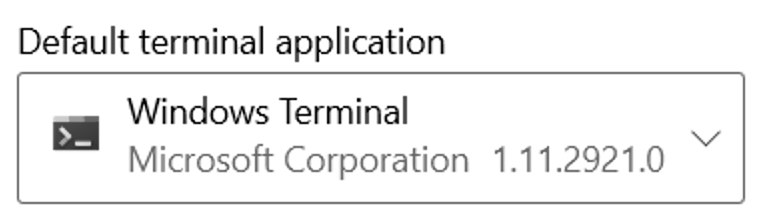
Set default terminal application to Windows Terminal.
- Settings, Startup.
-
Install Caskaydia Cove Nerd Font for Glyphs
- Extract and copy to
c:\windows\fonts - Settings, Profiles, PowerShell, Appearance, Fontface,
select
CaskaydiaCove NF - VS Code Settings, Text Editor, Font, add
'CaskaydiaCove NF',
- Extract and copy to
-
Install Oh My Posh for Windows.
- Install Oh My Posh using winget with the command:
winget install JanDeDobbeleer.OhMyPosh - Browse prompt themes: https://ohmyposh.dev/docs/themes
- Choose a theme and edit your PowerShell
$PROFILE:code $PROFILE - Paste (replacing theme):
oh-my-posh --init --shell pwsh --config ~/AppData/Local/Programs/oh-my-posh/themes/jandedobbeleer.omp.json | Invoke-Expression
- Install Oh My Posh using winget with the command:
-
Install Terminal Icons
Install-Module -Name Terminal-Icons -Repository PSGallerycode $profile, pasteImport-Module -Name Terminal-Icons
-
Optional: Install Oh My Posh on WSL Ubuntu.
- Follow instructions for manual Linux installation.
- Edit
.bashrcfile:code ~/.bashrc - Paste
eval "$(oh-my-posh --init --shell bash --config ~/.poshthemes/jandedobbeleer.omp.json)" - Windows Terminal Settings, Profiles, Ubuntu, Appearance, Font face, select
CaskaydiaCove NF.