Skip to content

Instantly share code, notes, and snippets.

@vicly
Last active July 3, 2020 20:06
Show Gist options
  • Select an option

  • Save vicly/f0ee1f752e4e2629eb6b600b667b6da1 to your computer and use it in GitHub Desktop.

Select an option

Save vicly/f0ee1f752e4e2629eb6b600b667b6da1 to your computer and use it in GitHub Desktop.
[AWS note] #AWS

AWS CloudWatch

https://docs.aws.amazon.com/AmazonCloudWatch/latest/monitoring/cloudwatch_architecture.html

What's it

####How Cloud Watch Works How CloudWatch Works

Core Concept

Namespace

  • Isolate metrics
  • No default, must specify
  • < 256, 0-9a-zA-Z . - _ / # :
  • AWS namespace: AWS/<service>, e.g. AWS/EC2

Metrics: fundamental concept

  • Region specific

  • Metric(variable) represents a time-ordered set of data points(value over time), e.g. EC2 CPU usage

  • You can send your own metrics, add data points in ANY ORDER, and at any rate you choose, you can retrieve statistics about those data points as ordered set of time-series data

  • Can NOT be deleted; if no new data is pushed, auto expired after 15 months

  • Data points older than 15 months expire on a rolling basis; new in, old out

  • Time Stamps

    • Required for each data point, default now
    • now.minus(2Weeks) <= TS <= now.plus(2Hours)
    • recommend UTC, 2016-10-31T23:59:59Z; non-UTC cause alarm Insufficient Data or delayed
  • Metrics Retention

    For example, if you collect data using a period of 1 minute, the data remains available for 15 days with 1-minute resolution. After 15 days this data is still available, but is aggregated and is retrievable only with a resolution of 5 minutes. After 63 days, the data is further aggregated and is available with a resolution of 1 hour.

    • data points with period of X are available for Y
      • < 1 min: 3 hours
      • 1 min: 15 days
      • 5 mins: 63 days
      • 1 hour: 455 days(15 months)

Dimensions

  • a name/value pair uniquely identifies a metric; assign up to 10 dimensions to a metric

  • e.g. filter specific EC2 instance by specifying InstanceId dimension

  • For certain AWS services, e.g. EC2, CloudWatch can aggregate across dimensions

  • For custom metrics, CloudWatch does not aggregate across dimension, you must specify dimension when searching

  • Dimension Combinations

    • treat each as a separate metric, so combinations should uniquely identify
    • can only use the dimensions you published
    // namespace: `DataCenterMetric`
    //metric: `ServerStat`
    
    Dimensions: Server=Prod, Domain=Frankfurt, Unit: Count, Timestamp: 2016-10-31T12:30:00Z, Value: 105
    

Dimensions: Server=Prod, Domain=Rio, Unit: Count, Timestamp: 2016-10-31T12:32:00Z, Value: 95

// GOOD
Server=Prod,Domain=Rio

// BAD
Server=Prod

**Statistics**

* *statistics* are metric data aggregations over specified periods of time
* avaliable statistic
* `Minimum`, `Maximum`, `Average`(Sum/SampleCount)
* `Sum`: all added together
* `SampleCount`
* `pNN.NN`: e.g. p95.45
* Unit
* each statistic has a unit of measure, by default `None`
* aggregate data points by unit, two different unit => separate data streams
* Periods
* A period is the length of time associated with a specific Amazon CloudWatch statistic. Each statistic represents an aggregation of the metrics data collected for a specified period of time
* 1, 5, 10, 30 or any multiple of 60, e.g. 360 means 6mins, min 1, max 86400
* When you retrieve statistics, specify a period, start time, and end time; default period is 1 min, and end-start is 1 hours, so you get an aggregated set of statistics for each minute of the previous hour.
* Aggregation
* **NOT** aggregate data across regions
* You can publish as many data points as you want with the same or similar time stamps. CloudWatch aggregates them by period length
* For large datasets, you can insert a pre-aggregated dataset called a statistic set. With **statistic sets**, you give CloudWatch the Min, Max, Sum, and SampleCount for a number of data points. This is commonly used when you need to collect data many times in a minute


**Percentiles**

* e.g. 95th mean 95% data is lower than a value and %5 is higher than it
* Supported by `EC2 RDS Kinesis ALB ELB APIGateway`
* up to 2 decimal places e.g. p95.85
* for **statistic sets**, only for data
 1. SampleCount is 1
 2. Min and Max are equal 

**Alarms**

* An alarm watches a single metric over a specified time period, and performs one or more specified actions, based on the value of the metric relative to a threshold over time
* When creating an alarm, select a period that is greater than or equal to the frequency of the metric to be monitored


### Getting Started

#### Custom metrics

```bash
# Publish metric
aws cloudwatch put-metric-data --metric-name Buffers --namespace MyNameSpace --unit Bytes --value 231434333 --dimensions InstanceId=1-23456789,InstanceType=m1.small

# Get statistic
aws cloudwatch get-metric-statistics --metric-name Buffers --namespace MyNameSpace --dimensions Name=InstanceId,Value=1-23456789 Name=InstanceType,Value=m1.small --start-time 2016-10-15T04:00:00Z --end-time 2016-10-19T07:00:00Z --statistics Average --period 60

Single Data Points

# Publish
aws cloudwatch put-metric-data --metric-name PageViewCount --namespace MyService --value 2 --timestamp 2016-10-20T12:00:00.000Z
aws cloudwatch put-metric-data --metric-name PageViewCount --namespace MyService --value 4 --timestamp 2016-10-20T12:00:01.000Z
aws cloudwatch put-metric-data --metric-name PageViewCount --namespace MyService --value 5 --timestamp 2016-10-20T12:00:02.000Z
# Get statistic
aws cloudwatch get-metric-statistics --namespace MyService --metric-name PageViewCount \ 
--statistics "Sum" "Maximum" "Minimum" "Average" "SampleCount" \ 
--start-time 2016-10-20T12:00:00.000Z --end-time 2016-10-20T12:05:00.000Z --period 60

{
    "Datapoints": [
        {
            "SampleCount": 3.0, 
            "Timestamp": "2016-10-20T12:00:00Z", 
            "Average": 3.6666666666666665, 
            "Maximum": 5.0, 
            "Minimum": 2.0, 
            "Sum": 11.0, 
            "Unit": "None"
        }
    ], 
    "Label": "PageViewCount"
}

Reference

AWS CloudWatch Log

Concepts

Log Events: contains timestamp and raw message(must be UTF-8 encoded)

Log Streams

  • a sequence of log events that share the same source.

Log Groups

Metric Filter

Retention Settings
General

EC2 Instance Types

https://aws.amazon.com/cn/ec2/instance-types/

启动EC2

选区 -》选AMI -》 选InstanceType -》配Security Group -》 DONE

注意收费

假设您的实例每小时的实例收费为 0.10 美元。如果您要运行该实例一小时,中途不停止,您将被收取 0.10 美元。如果您在一小时内停止并重新启动该实例两次,您将因该使用小时被收取 0.30 美元 ,最初 0.10 美元,加上 两次停止后重新启动 ,每次0.10 美元。

CPU积分和基准性能

https://docs.aws.amazon.com/zh_cn/AWSEC2/latest/UserGuide/burstable-credits-baseline-concepts.html

许多应用程序(例如 Web 服务器、开发人员环境和小型数据库)不需要CPU持续高速运行,但某些时刻CPU需要运行在非常高的速度上。 T实例正是针对这类使用情况而专门设计的。

1 CPU积分 = 1 vCPU 100% 使用率运行一分钟;或 1个 vCPU 50% 运行2分钟;或 2个 vCPU 50% 运行1分钟,等。。

基准性能 = 每小时积分数量 / CPU数 / 60,如:t2.medium定义每小时积分24,2个CPU,所以基准为20%

当运行时,CPU使用超过基准性能则消耗积分,否则累计积分(最多24小时,累计到最大值则停止累加,如 t2.medium最大576分)

物理CPU,vCPU,ECU等区别

物理层面

  • 物理cpu数:主板上实际插入的cpu数量,每个有不重复的 physical id
  • CPU核数:单块CPU能处理数据的芯片组的数量,如四核,八核
  • 逻辑cpu数:简单说,它可使处理器中的1颗内核就像2颗内核那样在OS中发挥作用

总核数 = 物理CPU个数 × 每颗物理CPU的核数

总逻辑CPU数 = 物理CPU个数 ×每颗物理CPU的核数 × 超线程数。

vCPU (2014.04的新概念,替换ECU)

类似虚拟机vCPU概念,简单理解,一个vCPU指一个CPU超线程。更容易被已熟悉vmWare中的vCPU概念的用户所接受。

ECU (EC2 Compute Unit) (Deprecated)

AWS给不同配置的机器的统一计算能力标准;1个ECU大概相当于2007年的1GHz Xeon处理器的性能。 这样,比较新的单个CPU超线程的ECU值就高于老CPU的ECU值。

https://aws.amazon.com/cn/ec2/instance-types/ 里的实例规格信息也已不见了ECU的踪影。

https://docs.aws.amazon.com/elasticloadbalancing/latest/application/introduction.html

https://docs.aws.amazon.com/elasticloadbalancing/latest/userguide/how-elastic-load-balancing-works.html

ELB

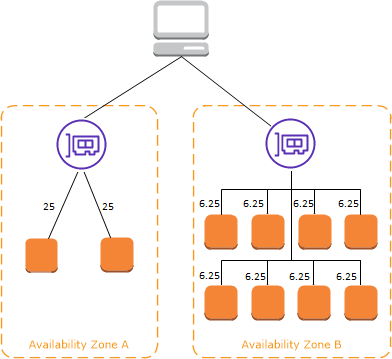
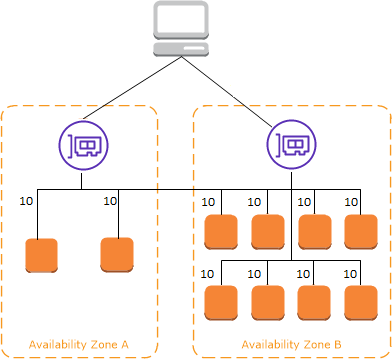
  • route to target in one or more AZ enabled for LB
    • if you disable an AZ, targets still registered, but LB wont route traffic to them.
  • cross zone load balancing
    • enabled: route traffic to multi AZ
    • disabled: load balancer node only route traffic to target in the same AZ
  • To prevent connection multiplexing between client to LB, disable HTTP keep-alives by setting the Connection: close header in your HTTP responses.
  • Keep-alive is supported on back-end connections between LB and target by default.

Cross Zone Enabled Cross Zone Enabled

Cross Zone Disabled Cross Zone Disabled

ALB - one type of ELB

ARN

// ALB
arn:aws:elasticloadbalancing:REGION_CODE:ACCT_ID:loadbalancer/app/LB_NAME/LB_ID
// ALB listener
arn:aws:elasticloadbalancing:REGION_CODE:ACCT_ID:listener/app/LB_NAME/LB_ID/LISTENER_ID
// ALB listener rule
arn:aws:elasticloadbalancing:REGION_CODE:ACCT_ID:listener-rule/app/LB_NAME/LB_ID/LISTENER_ID/RULE_ID

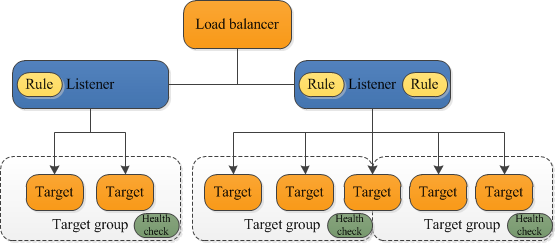
ALB

  • Listener

    • configure protocol and port
    • forward requests to one or more target groups based on rules
    • must have a default rule
    • can define content-based routing rules
    • rule = a target group + condition + priority
  • Target Group

    • one or more registered target, e.g. EC2 instance
    • can register a target with multiple target group
  • add/remove w/o disrupting application

  • ELB can auto-scale load balancer based on traffic

  • cross-zone load balancing is always enabled

  • Support

    • path based routing
    • host based routing: host HTTP header
    • http request fields based routing:
    • health check per target group: HTTP header, method, query param, source IP address
    • route to multi apps on a single EC2 instance: "IP/Instance + Port" based
    • redirect one URL to another
    • return custom HTTP response
    • register target by IP address, including targets outside VPC for the load balancer
    • lambda as target
    • ECS task as target
    • monitor healthy, cloudwatch metrics at target group level
    • access log
    • authenticate users of your applications through their corporate or social identities before routing requests

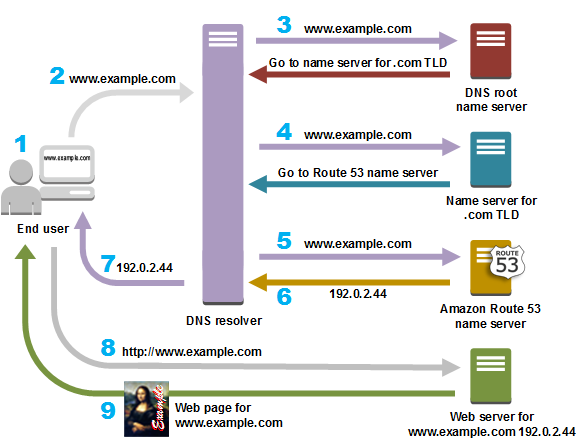
How route53 routes traffic

  1. register your domain name. E.g. example.com
  2. After you register, Route53 auto creates a public hosted zone with same name as domain
  3. To route traffic, create records (aka. resource record sets), a record includes 3 parts
  • Name: must ends with the hosted zone name, e.g. www.example.com, blog.example.com
  • Type: route to what type of resource. E.g. MX for email server, A for web server
  • Value: IPv4 list for A; email server name for MX

How route53 routes traffic

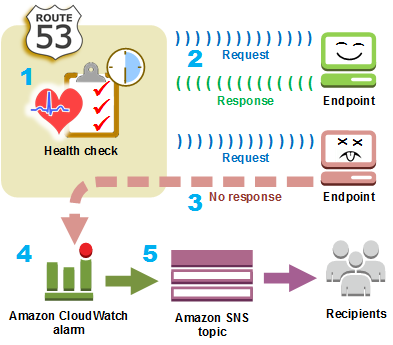
How route53 checks the health of your resources

How route53 checks health

Route53 Concepts

https://docs.aws.amazon.com/Route53/latest/DeveloperGuide/route-53-concepts.html

Domain Registration Concepts

  • domain name: e.g. example.com
  • domain registra: A company that is accredited by ICANN (Internet Corporation for Assigned Names and Numbers) to process domain registrations for specific top-level domains (TLDs)
  • domain registry: A company that owns the right to sell domains that have a specific top-level domain
  • domain reseller: A company that sells domain names for registrars such as Amazon Registrar
  • top-level domain (TLD): e.g. .com, .org
    • generic TLD: give users an idea of what they'll find on the website, e.g. .bike
    • geographic TLD: associated with geographic areas such as countries or cities, e.g. .cn, .jp

DNS Concepts

  • alias record: to route traffic to CloudFront, S3 bucket
  • authoritative name server: a name server knows one part of the DNS, e.g. .com auth name server knows registered .com domain; another example, if Route53 name server receives a request to www.exmaple.com, it finds the record and returns the IP address
  • DNS query: Usually submitted by a device and the query result is the IP address of the web server.
  • DNS resolver: A DNS server managered by ISP. The query is sent to DNS resolver which talks to DNS name servers to get webserver IP.
  • DNS: A worldwide network of servers help IP-enabled devices talk to each other.
  • hosted zone: a container for records, which define how you route traffic for a domain(e.g. example.com), and all of its subdomains(e.g. blog.example.com).
  • name servers: servers in DNS that help to translate domain names into the IP addresses.
  • private DNS: local DNS routes traffic for a domain and its subdomains to EC2 instances within one or more VPC.
  • record(DNS record): e.g. create records for example.com and www.example.com to route traffic to a web server with IP 192.168.11.289
  • reusable delegation set: a set of authoritative name servers can use with > 1 hosted zone.
  • routing policy:how route53 responds to DNS queries. E.g. Failover routing policy, Latency routing policy, etc.
  • time to live(TTL): in seconds you want a DNS resolver to cache before asking Route53 again.

Resources

  • Domains you can register with Route53
Sign up for free to join this conversation on GitHub. Already have an account? Sign in to comment