
AI :: Image Generators :: Midjourney :: Courses :: AI Art Midjourney Passive Income: Make and Sell Your AI Art :: Section 1: Start There: Let's Learn How To Create Your AI Art!
⪼ Made with 💜 by Polyglot.
- 1.25x
- 1.5x

Ask Questions or search for existing answers. Questions will be answered at latest, 48 hours.

Write notes here...
- Product Recommendations


Hide or show transcript
We are entering a time of a revolutionary technology that is already changing the entire world.
- How to get out of the most from the mid journey
- how to create and prepare art for sale.
- And we will know many different ways how to monetize it.
type the description for our images

...and all this options that are on this website.

So simply, let's go over to the left bottom corner.

Discord is a voice video and chat application
If you don't have a Discord account or haven't joined the server
Starting from the [Midjourney Website]; on your account page, click on the three dots (...) in the bottom left-hand corner of the screen. Click the link "Go to Discord" to open discord.
Once in discord, go into any channel and look for a message from "Midjourney Bot". Click the text "Midjourney Bot" (text should be green), then click "Message" from the drop-down menu. You'll be taken into a direct chat with the "Midjourney Bot". This is where you'll issue prompt commands.
In the message entry field, type /imagine and after the space type your prompt text. If your prompt text is "Warrior Unicorn", then the full prompt would look like /imagine prompt Warrior Unicorn.
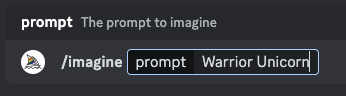
This is the direct chat with the Midjourney bot.

We need to go over to this box then type slash imagine.
Then it suggests us to use this command; click here and then type something simple.

click Enter.

You can notice here the entire process of creation of your images.
Okay, Right here you have the percentage.

We have our images created.
type:
/imagine half human half rat fighting with a big orange creature, fantasy

We have our final result.

And to simply sum it up, I need to go over and click on here.

And as you can see, it provided for us four images to choose. Therefore, now I will show you how to get each of these images. Okay, So simply click on this dark background.

add more details to our image and also increase the resolution.
- U1: Top Left
- U2: Top Right
- U3: Bottom Left
- U4: Bottom Right

It will provide the images based on the image that we chosen.
- U1: Top Left
- U2: Top Right
- U3: Bottom Left
- U4: Bottom Right

- Make Variations
- Web
- Favorite
type:
/settings

And then click this remix mode.

So I will click simply here.
Afterwards, when we click here on the make variations, we suddenly can remix our prompt.

So the description there I will type maybe the half human, half rat fighting with the sword, maybe
against against.
Okay.
A big orange creature, I can add maybe the sariel and then maybe the color red.
Okay, then let's press submit here.

You can notice that the differences are huge.
