
Tidal Cyclesの手動インストールメモ 2019.4 (Windows編)
演奏するプログラミング、ライブコーディングの思想と実践 ―Show Us Your Screensでは、Windows環境にTidal Cyclesをインストールする方法としてChocolateyを使った手順が紹介されている。 しかし、2019/4/7現在、ChocolateyでHaskellのパッケージインストールに使用されるCabal環境では、networkパッケージのインストールに失敗するため、書籍で紹介されている手順ではTidalCyclesのインストールができない。
そこで、Haskellのパッケージインストールにstackを使用したTidal Cyclesのインストール手順を紹介する。
SuperColliderのサイトから最新版のインストーラをダウンロード&インストール
- https://supercollider.github.io/download
- 今回は、3.10.2, 64-bit を使用
SuperColliderのプラグイン集。Tidal Cyclesのサンプルの実行で必要みたい。
SuperColliderを起動して、エディタウインドウに次のコードを入力して、ctrl+enterを押すと、SuperColliderのプラグインディレクトリが表示される。
Platform.userExtensionDir
Post Windowに変数に設定されているパスが表示される。ここがSuperColliderのプラグインディレクトリ。
-> C:\Users\ユーザ名\AppData\Local\SuperCollider\Extensions
sc3-pluginsのサイトにはソースからコンパイルする方法が掲載されているが、git+Visual Studio+cmakeを用意する必要があるので、コンパイル済みプラグインを以下URLからダウンロードする。
- https://github.com/supercollider/sc3-plugins/releases/tag/Version-3.10.0
- sc3-plugins-3.10.0-Windows-x64-VS.zipをダウンロード
zipを解凍すると、中にSC3pluginsというディレクトリがあるので、このディレクトリをまるごと C:\Users\ユーザ名\AppData\Local\SuperCollider\Extensions ディレクトリへコピーする。
SuperColliderを起動して、エディタウインドウに次のコードを入力して、ctrl+enterを押す。
Quarks.checkForUpdates(); Quarks.install("SuperDirt", "v1.0")
Post Windowに次のコマンドが表示されたら、インストール完了。
SuperDirt installed
-> Quark: SuperDirt[v1.0]
SCDoc: Indexed 1343 documents in 70.41 seconds
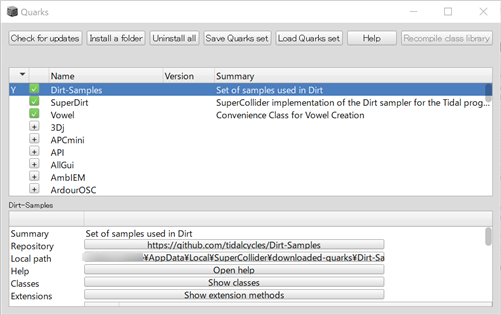
ちなみに、QuarksはSuperColliderのパッケージマネージャ。Quark.guiを実行するとインストール可能なパッケージ一覧が表示されるので、ここからSuperDirtをインストールしてもOK。
パッケージDart-SamplesにTidal Cyclesで使える音色が含まれている。 Local pathのボタンを押すと、音色が格納されているディレクトリが開く。
まず、Haskellのパッケージマネージャstackをダウンロード&インストールする。
- https://www.haskell.org/downloads/#stack
- https://github.com/commercialhaskell/stack/releases
- ※今回はstack-1.9.3-windows-x86_64-installer.exeを使用
次に、コマンドプロンプトを起動し、次のコマンドを入力する
> stack install tidal
stack pathコマンドを実行すると、各パッケージがどこにインストールされているか表示される。
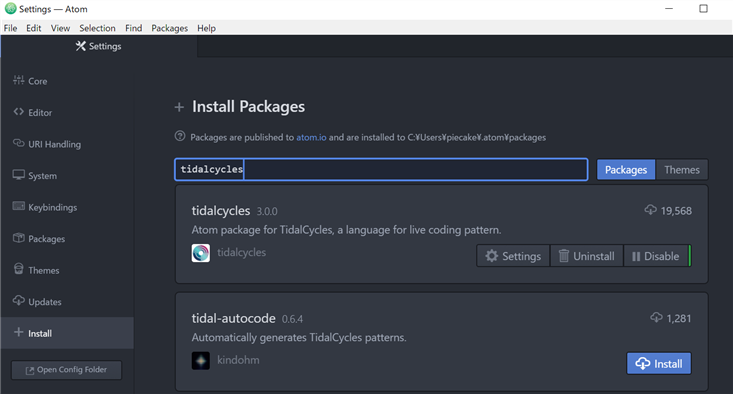
Atomをインストール&起動する。
メニューのFile->Settingsを開き、Installからtidalcyclesをインストールする。
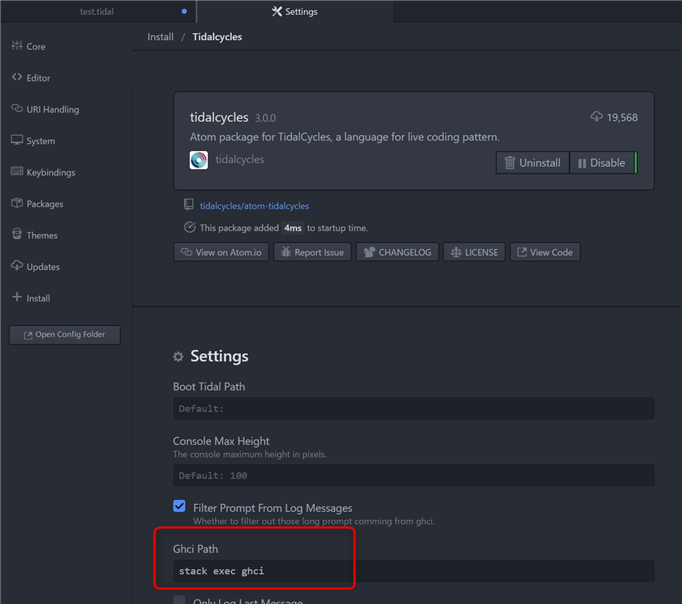
stackでTidal Cyclesをインストールした場合は、tidalcyclesの設定画面を開き、Ghci Pathの項目に、"stack exec ghci"を設定しておく。
SuperColliderを起動し、編集ウインドウで次の2行を実行してSuperDirtを起動する。
include("SuperDirt")
SuperDirt.start
Atomを起動して*.tidal拡張子のファイルを開く。
- File → New Fileで新規作成してから、*.tidalでファイルを一度保存する
- もしくは、*.tidalファイルをFile → Open Fileから開くのどちらかで。
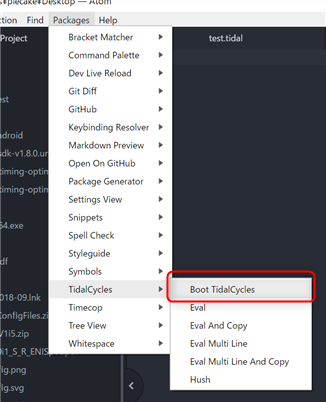
この状態で、メニューのPackages→Tidal Cycles→Boot Tidal Cyclesを選択し、Tidal Cyclesを起動する
次に、*.tidalファイルに以下の1行を記述しこの行でctrl+enterを押す。
d1 $ s "bd cp"
バスドラムとクラップが交互に鳴れば、Tidal Cyclesのインストールは成功している。
音を止めるときは、
d1 silece
または、
hush
を実行すると音が止まる。